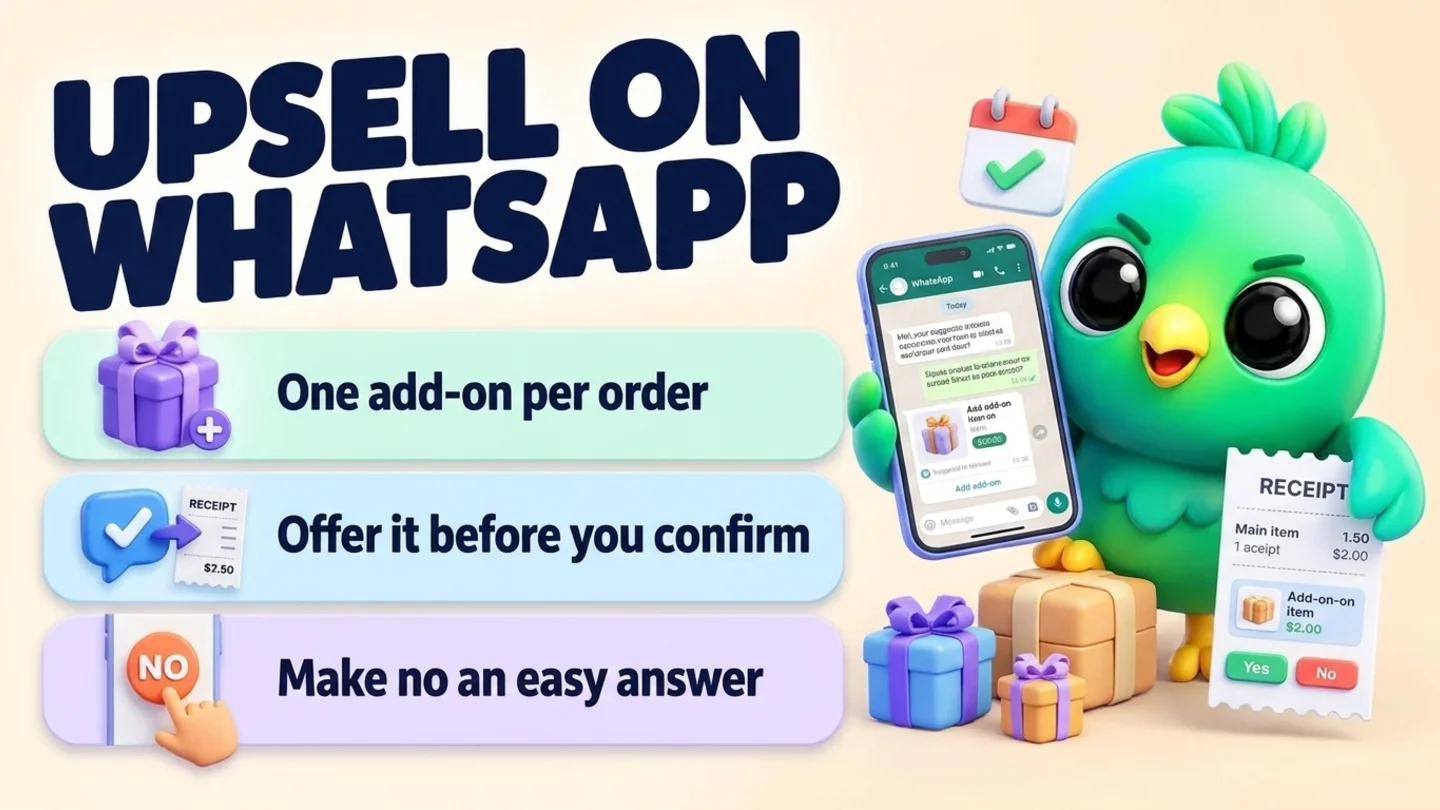
To upsell on WhatsApp without being pushy, offer one relevant extra at the moment the customer is already deciding: after they have said what they want and before you confirm the order. Name the add-on, say in one line why it helps with what they are buying, give the price, and make no an easy answer ("Want me to add gift wrap for [price]? No problem if not."). If they say yes, send the new total in writing before you take payment. Never add anything without a clear yes, keep upsells out of complaints, payment reminders and delivery updates, and only send a suggestion after delivery to people who agreed to hear about related products. You do not need the WhatsApp Business API, a Shopify app or a chatbot for any of this.
This post is part of our guide to WhatsApp CRM for small business. It covers the extra you offer on top of a sale that is already happening: an add-on, a bigger size, a bundle or a matching product. Getting the main yes is covered in sending a quote on WhatsApp, confirming what was bought is in confirming orders on WhatsApp, and bringing customers back for the same product again is in repeat customers on WhatsApp.
Last updated 20 October 2026. WhatsApp's Business Messaging Policy, WhatsApp Help Center pages on business messaging compliance, quick replies and sharing catalog items, Meta's template categorization guidelines and the FTC's guides on "free" offers and bargain pricing were checked on their own pages on that date. This is practical guidance, not legal advice.
What counts as an upsell on WhatsApp
People use "upsell" for several different offers. They work at slightly different moments, so it helps to name them.
| Type | What you offer | Example | Works best when |
|---|---|---|---|
| Add-on | A small extra that goes with the item | Gift wrap, a message card, candles with a cake, a screen protector with a phone case | The customer is choosing what to order |
| Upgrade | A bigger, better or faster version of the same thing | The larger box, express delivery, the longer session | The customer has asked about size, speed or quantity |
| Bundle | Two or more items sold together, often at a set price | Cleanser plus moisturizer, a gift set, three classes instead of one | You can name a real reason they go together |
| Cross-sell | A different product that pairs with what they bought | A refill after a starter kit, a stand for a new speaker | After they have used the first item, with permission |
The common rule: the extra should solve a problem the customer is about to have, or make what they already chose better. "Do you want anything else?" is not an upsell. It is a question the customer has to do the work to answer.
When to offer it, and when not to
Timing matters more than wording. The best moment is while the customer is still in the buying conversation, because a yes changes one order instead of starting a new one.
| Moment | Why it works or fails | Do this |
|---|---|---|
| After they say what they want, before you confirm | They are already deciding and the total is still open | Offer one extra with its price |
| When they ask about size, quantity or delivery | They have raised the subject themselves | Offer the upgrade that answers it |
| After payment, before you pack | Fine for a small add-on, but it reopens a closed order | Only if you can add it without a new payment hassle |
| After delivery, once they have used it | Can be welcome for a matching product or a refill | Only for people who agreed to hear about related products |
| Inside a complaint, refund or delay | Reads as tone-deaf | Fix the problem first; no offers |
| In a payment reminder or delivery update | Mixes a transaction with a sale | Keep those messages about the order only |
If the order is already confirmed and paid, a late add-on often costs more effort than it earns. One clear offer before you confirm is usually enough.
Step 1: Pick one add-on for each main product
Most pushy upsells come from not knowing what to offer, so the seller offers everything. Decide in advance, once, and write it down.
For each product or service you sell most, choose one extra. A good add-on is usually cheaper than the main item, clearly connected to it, and something you can actually supply on the same order.
| Business | Main item | One natural add-on | One upgrade |
|---|---|---|---|
| Home baker | Birthday cake | Candles and a message topper | Next size up for more guests |
| Boutique or gift shop | Sweater or gift item | Gift wrap and a handwritten card | A matching accessory as a set |
| Skincare seller | Moisturizer | Travel size for the bag | The cleanser that goes with it as a bundle |
| Phone and electronics shop | Phone case | Screen protector | Faster charger |
| Salon or spa | Haircut or facial | Short add-on treatment in the same visit | Longer session |
| Photographer | Portrait session | Extra edited images or prints | Second location |
| B2B supplier | One case of product | Display stand or sample pack | The next case size up |
If you are not sure what to offer, look back at your last few weeks of chats. What did customers ask for after they ordered? What did someone message back about a few days later ("Do you sell batteries for this?")? Those are your add-ons. Industry pages such as home bakers, clothing and fashion sellers, cosmetics and skincare, mobile and electronics shops and custom gift businesses show how those trades run the rest of the chat.
Tip: Holiday season makes add-ons easy. Gift wrap, a gift note, a "ship to someone else" option and a gift receipt are natural extras in November and December. Offer them as a choice, not a surprise charge. If the customer has not picked the gift yet, start with personal shopping on WhatsApp: four questions and a shortlist of three.
Step 2: Offer it once, before you confirm
The offer has four parts: what it is, why it helps with their order, the price, and an easy way to say no. Keep it to two short sentences.
At the order (product)
Got it, one [item] in [size/color]. Want me to add [add-on] for [price]? It [one-line reason]. No problem if not.
When they mention a gift
Is this a gift? I can gift-wrap it and add a handwritten card for [price], and ship it straight to them if you like. Just say yes or skip.
When they ask about quantity or guests
For [number] people the [size] is a little tight. The [next size] serves [number] for [price difference] more. Want to switch, or keep the [size]?
For a service
You're booked for [service] on [day]. Some clients add [add-on] in the same visit, which takes [minutes] and costs [price]. Want me to add it?
A few rules that keep this honest:
- One offer per order. If they say no, do not offer a second thing in the same chat.
- Price in the same message. "Want gift wrap?" followed by a price later feels like a trap.
- Make no easy. "No problem if not" or "Just say skip" tells them you will not argue.
- Give a real reason. "It protects the screen from day one" is a reason. "It's popular" is not.
- Do not invent urgency. Only say an offer ends if it really ends.
If you use the WhatsApp Business app catalog, you can send the add-on itself instead of describing it. WhatsApp's Help Center explains how to share one or several catalog items in an individual chat, and notes that businesses can proactively share products with customers, which still means people who agreed to hear from you. Saved replies help too: the Business app stores up to 50 quick replies, but WhatsApp's help page says media files are not supported in quick replies on WhatsApp Web or Desktop, so keep add-on photos where you can attach them quickly.
If you send a quote, the add-on can sit there too, as a clearly marked optional line. Our post on how to send a quote on WhatsApp shows a quote layout with optional line items and an A or B option, which is where an upgrade fits naturally.
Step 3: Get a clear yes and send the new total in writing
Add the extra only after the customer says yes in the chat. "Maybe" or a thumbs-up on a different message is not a yes to the add-on. Then send the full order back in one message so they can check it before they pay.
Order summary with the add-on
Here's your order: 1 x [item], [size/color]: [price] 1 x [add-on]: [price] Delivery: [price] Total: [amount] Reply OK and I'll send the payment link.
If they change their mind, take it off and send the corrected total. A customer who sees an extra charge they did not agree to will usually remember that more than the product.
Do not ask for card numbers in the chat to "add it to the payment". WhatsApp's Business Messaging Policy says not to share or ask people to share full payment card numbers, financial account numbers or ID numbers. Send a payment link from your payment provider instead. Our post on confirming orders on WhatsApp covers the rest of the confirmation and delivery loop.
Step 4: After delivery, suggest only with permission
A matching product or a refill can be genuinely useful a week or two after delivery. It is also the moment an upsell is most likely to feel like spam, because the customer did not start this conversation.
WhatsApp's rules are clear on the basics. Its Business Messaging Policy says you may only contact people who gave you their number and opted in to receive messages from you, and its best practices suggest getting an opt-in that covers the different categories of messages you will send, naming "order updates, relevant offers, product recommendations" as examples. WhatsApp's Help Center adds that a person reaching out to a business does not count as an opt-in to future proactive messages. So a customer who ordered once has agreed to hear about that order, not to receive suggestions.
The simple fix is to ask while you are still talking about the order:
Ask for permission at checkout
One more thing: when your [item] is running low, or if we get a [matching item], want a quick message here? Just yes or no is fine.
Record the answer next to the chat, including the date. Then:
| Customer said | What you may send later |
|---|---|
| Yes to suggestions | One message about a related product or a refill, when it is genuinely relevant |
| Yes to refill reminders only | A reminder about the same item, not a different product |
| No, or did not answer | Nothing proactive; answer if they write to you |
| Stop at any point | Nothing more, and note it so you do not forget |
One suggestion after delivery (only with a yes)
Hi [name], hope the [item] is working well. You asked to hear about [matching item]: it's back in stock at [price]. Want one set aside? No reply needed if not.
Send it once. If there is no reply, do not follow up on a suggestion. For reminders about the same product on a cycle (refills, service-due dates), see repeat customers on WhatsApp, and for collecting and recording permission properly, see WhatsApp opt-in without the API.
Bundles and free gifts: the US pricing rules
Bundles and "free with purchase" offers are common upsells. In the US, the Federal Trade Commission has long-standing guides on how they should be presented. The two that matter most for small sellers are the Guide Concerning Use of the Word "Free" (16 CFR Part 251) and the Guides Against Deceptive Pricing (16 CFR Part 233).
| FTC guide says | What it means in a WhatsApp chat |
|---|---|
| A "free" item with a purchase means the customer pays nothing for it and no more than the regular price for the main item | Do not raise the price of the main item to cover the "free" gift, or swap in a cheaper version |
| All terms and conditions of a "free" or "buy one, get one" offer should be clear at the outset, close to the offer | Put the conditions in the same message as the offer, not in a later message or a link |
| "Regular price" means the price you have openly and actively sold at recently, roughly the last 30 days | Do not call something free if you never really sold the main item at that price |
| If the price is usually negotiated, offering something "free" with it is improper | For haggled or custom-quoted work, offer a bundle price instead of a "free" extra |
| A "free" offer on the same item should not run for more than 6 months in any 12-month period | Rotate offers; a permanent "free" gift is just part of the price |
| Calling it a "gift" or "bonus" instead of "free" does not fix a misleading offer | The same rules apply whatever you call it |
A clean bundle message states everything at once:
Bundle offer
If you'd like the [item A] and [item B] together, the set is [bundle price] instead of [separate total]. Same products, just bought together. Want the set or just the [item A]?
If you run a seasonal sale, our Black Friday WhatsApp campaign guide covers who you may message and how to pace it. If the bundle is part of a holiday batch, taking pre-orders on WhatsApp covers caps and cut-offs.
Upsell messages to copy
Edit each to sound like you. Every one names one extra, gives the price and leaves an easy no.
Before checkout, product
Before I confirm: lots of people pair the [item] with [add-on] ([price]) because [reason]. Want it added, or just the [item]?
Before checkout, service
All set for [service]. If you'd like, I can add [add-on] for [price]; it only adds [minutes]. Totally fine to skip.
Upgrade on size or speed
Standard delivery gets it to you by [date]. Express gets it there by [date] for [price] more. Which would you like?
Gift add-on
Want it gift-wrapped with a card? It's [price], and I can write the message for you. Just send me the words.
B2B or wholesale
For [quantity] cases, the [next tier] is [price] per case instead of [price]. Want me to quote both so you can compare?
Bundle
The [item A] and [item B] come as a set for [price], instead of [separate total] separately. Want the set?
After delivery, only with a yes
Hi [name], you asked me to tell you when the [refill/matching item] came in. It's here, [price]. Want one?
When they say no
No problem at all. Your order stays as it is.
That last one matters. A friendly "no problem" is what makes a customer comfortable saying yes next time. You can keep the ones you use as saved replies, or start from our WhatsApp message templates tool.
Where upsells do not belong
Some messages exist to serve the customer, and adding an offer to them damages trust. Keep these clean:
| Message | Why no upsell | Our guide |
|---|---|---|
| Complaint, refund or "where is my order?" | The customer is unhappy or worried; an offer reads as ignoring them | WhatsApp customer service |
| Payment reminder | Mixing a debt and a sale confuses both | WhatsApp payment reminders |
| Order confirmation and delivery update | Keep transactional messages transactional | Confirm orders on WhatsApp |
| Waitlist offer | They agreed to hear about one slot or item | WhatsApp waitlist |
| First days of a new client | Let them see the first result first | Onboard clients on WhatsApp |
If you ever move to the WhatsApp Business API, Meta's template categorization guidelines say the same thing in their own terms: order management and account update templates should not promote, recommend, upsell or cross-sell products or include offers. Upsells and cross-sells are marketing messages there.
Track what you offered and what was accepted
You do not need a reporting tool to learn which add-ons work. Write one short line on the chat each time you offer: what you offered and whether they said yes. After a few weeks, a quick tally shows which extras customers actually want.
| Add-on | Offered | Accepted | Keep, change or drop? |
|---|---|---|---|
| Gift wrap + card | |||
| Screen protector | |||
| Next size up |
If an add-on is almost never taken, change the add-on before you change the wording. If one is accepted most of the time, consider building it into a bundle or mentioning it earlier. Average order value (total value of won orders divided by the number of won orders) is the number that should move. Our post on WhatsApp sales funnel metrics shows how to work it out in a spreadsheet, and the free WhatsApp sales pipeline template has a deal value column you can use.
Where InboxCRM fits
InboxCRM is a WhatsApp CRM Chrome extension for WhatsApp Web. It does not pick add-ons for you, take payments or check whether someone opted in. It helps when your orders already happen in WhatsApp chats and you want the offer, the yes or no, and the updated order beside each conversation, without the WhatsApp Business API.
- Add-on offers in a click. Quick replies can hold text, images, video, audio and documents, so a photo of the gift wrap or a bundle sheet goes out in one click. For text-only replies, "Insert into message box" drops the text into WhatsApp so you can type the price or the customer's name first. See the quick replies guide or the interactive quick replies tutorial.
- The order with the extra line. In the chat tools panel, the Orders tab can "Create order from this chat" from the customer's recent messages as an editable draft. You can change quantities, pick products from your Stock manager, or use "Add line" for an extra that is not in stock, such as gift wrap with its price; free-text lines never touch stock. "Save as draft" keeps it as a maybe; "Confirm order" makes it real. Once stock has been deducted the lines are locked, so add the extra before you confirm. "Send summary" sends the items and total to the chat only when you press it. Try the Order manager tutorial (fictional data; nothing is sent).
- What they said, beside the chat. Write "Offered gift wrap, yes" or "Said yes to refill messages, 20 Oct" in the Notes tab, and use tags or custom fields for permission. See the chat tools panel guide.
- A suggestion that stops itself. For customers who said yes to suggestions, a Follow-up rule watching a stage such as "Delivered, OK to suggest" can send one message after a delay you choose ("On funnel entry"), with "Stop if chat replied" and "Stop if chat changed stage" ticked. Each rule sends to a chat only once, and rules only run while Chrome is open with WhatsApp Web. Follow-up rules are not paced by the campaign sending limits, so move chats into that stage a few at a time. See the follow-up guide.
- Reminders that send nothing. Notifications can remind you to "check if the matching item is back for the three people who asked", with a Chrome notification and no message to the customer. See the notifications guide.
- The numbers on one screen. Add deal values to contact profiles and the sales funnel dashboard shows total revenue and average revenue per contact for a board, with "Export to Excel" for a CSV.
- Help with the wording. With your own AI provider key, the optional AI assistant can draft or improve a reply in a tone you pick (friendly, professional, short, apologetic or persuasive). Check every draft; it does not know your prices unless you tell it. See the AI assistant tutorial.
Honest limits: InboxCRM cannot tell you which add-on a customer wants, does not process payments or refunds, and cannot check whether a customer agreed to suggestions. Follow-up rules and scheduled messages only go out while Chrome is running with WhatsApp Web open. CRM records stay in Chrome on your device (chrome.storage.local), not on an InboxCRM server, and they do not appear in the WhatsApp mobile app. InboxCRM is a single-user extension, not a shared team inbox. If that fits how you sell, you can add InboxCRM to Chrome.
Mistakes that make upsells feel pushy
- Offering everything. One relevant extra beats a list of five.
- No price in the offer. It makes the customer ask, and then feel trapped.
- Asking again after a no. Once per order is enough.
- Adding it without a clear yes. Always send the new total before payment.
- Upselling inside a complaint, reminder or delivery update. Fix or inform first.
- Calling something free when the price went up. The FTC guides say the main item should stay at its regular price.
- Suggesting products to people who only ordered once. Ask first, then keep to what they agreed to.
Frequently asked questions
How do I upsell on WhatsApp without being pushy?
Offer one add-on that clearly goes with what the customer is buying, while they are still deciding and before you confirm the order. Give the price and a one-line reason in the same message, make no an easy answer, and do not offer again if they decline.
When is the best time to offer an add-on in a WhatsApp chat?
Right after the customer has said what they want and before you confirm or take payment. The total is still open, so a yes changes one order instead of creating a new one. After delivery is fine for a matching product only if the customer agreed to hear about related products.
Can I send product recommendations to past customers on WhatsApp?
Only to people who opted in to that kind of message. WhatsApp's Business Messaging Policy requires opt-in and suggests covering categories such as relevant offers and product recommendations, and its help pages say a customer messaging you first is not opt-in to future proactive messages. Ask at checkout and record the answer.
Are buy one get one free offers allowed for US small businesses?
Yes, if they are honest. The FTC's guide on the word "free" says the customer should pay no more than the regular price for the item they must buy, and all conditions should be stated clearly at the outset of the offer. Do not raise the price to cover the gift or call it a "bonus" to get around the rules.
Do I need the WhatsApp Business API or a Shopify app to upsell on WhatsApp?
No. Most small sellers can offer add-ons one to one in the chat they are already having, using saved replies and a written order summary. API tools and store apps make more sense when you need automated post-purchase messages for many orders a day, and there upsells must be sent as marketing messages.
Sources
- WhatsApp Business Messaging Policy (last updated 23 September 2026), WhatsApp, checked 20 October 2026
- How to comply with the WhatsApp Business Messaging and Commerce policies, WhatsApp Help Center, checked 20 October 2026
- How to use quick replies, WhatsApp Help Center, checked 20 October 2026
- How to share products or services with customers, WhatsApp Help Center, checked 20 October 2026
- Template categorization, Meta for Developers, checked 20 October 2026
- 16 CFR Part 251: Guide Concerning Use of the Word "Free" and Similar Representations, Federal Trade Commission (eCFR), checked 20 October 2026
- 16 CFR Part 233: Guides Against Deceptive Pricing, Federal Trade Commission (eCFR), checked 20 October 2026
InboxCRM is a WhatsApp CRM for WhatsApp Web. Pipeline, notes, follow-ups and quick replies beside every chat, with your CRM data kept in your browser.
Add InboxCRM to Chrome