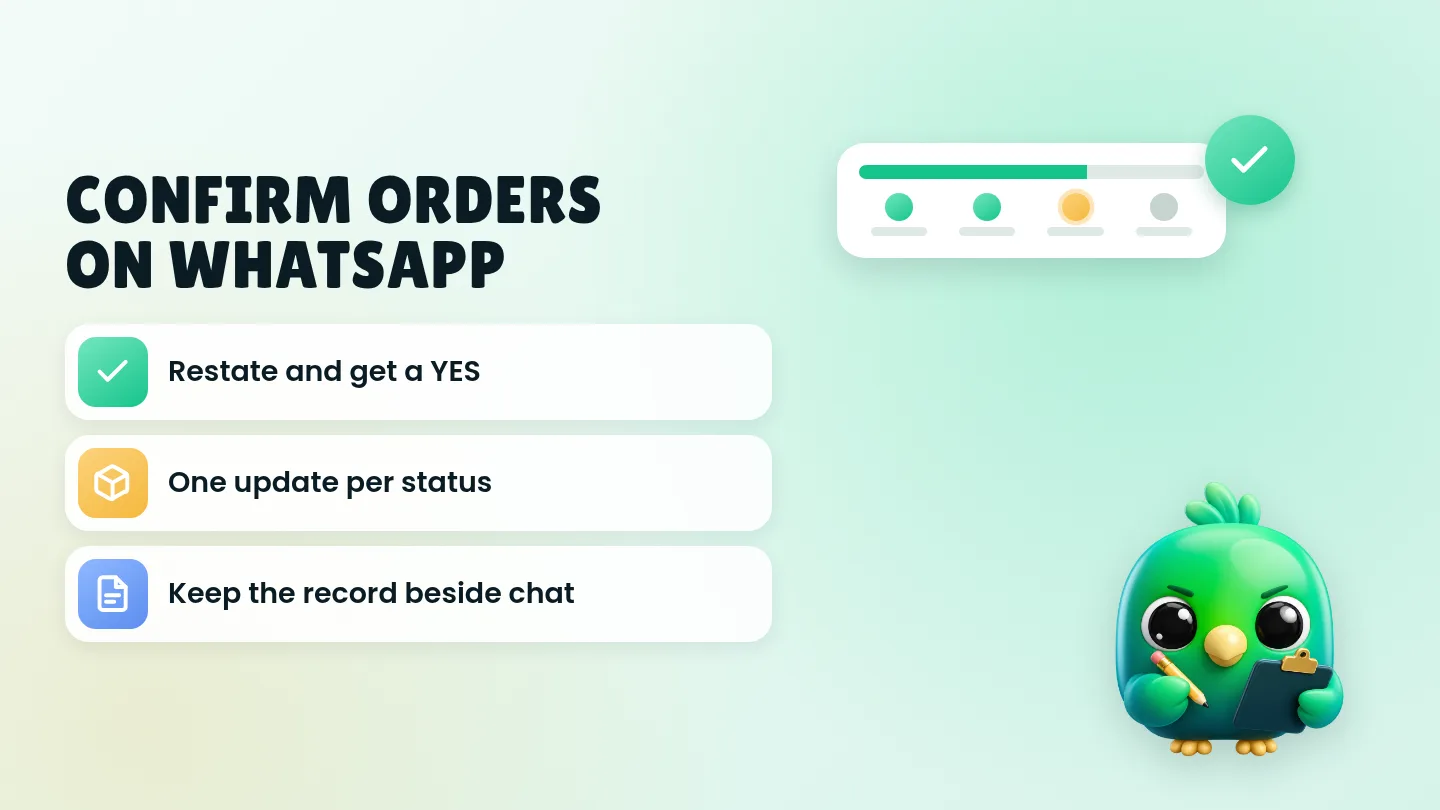
To confirm an order on WhatsApp without the API, restate the items, total and delivery or pickup details in one short message, ask for a YES, write the order down where you will see it tomorrow, and send one clear update when the status changes (paid, packed, shipped, delivered). That loop works in the free WhatsApp Business app and on WhatsApp Web. You do not need the WhatsApp Business API or an ecommerce bot for a solo seller or a two-person shop.
This post is part of our guide to WhatsApp CRM for small business. It sits after the sale is agreed: once the customer has said they want to buy, this is how you confirm, fulfil and close the chat. If they are still browsing or asking "price?", start with how to qualify leads on WhatsApp instead.
Last updated 3 October 2026. WhatsApp features and policy points mentioned here were checked against the WhatsApp Help Center and WhatsApp Business Messaging Policy on that date.
Why WhatsApp orders go wrong
Most small shops already take orders in chat. The problem is rarely "we need a bot". It is usually one of these:
- The customer said "I'll take it" and you never restated the size, colour or total, so they expected something else.
- Payment arrived, but you never wrote the address or pickup time down.
- They ask "where's my order?" because nobody sent a tracking message when it shipped.
- Two people answered the same number and both promised the last unit in stock.
An API order-status template helps when you ship hundreds of parcels a day from a storefront. For a baker, boutique, repair shop or reseller with a handful of paid orders a day, a tight human routine is enough, and it feels more personal.
The five-step order loop
Use the same five steps for every paid or nearly-paid chat. Keep each message short.
| Step | What you do | Done when |
|---|---|---|
| 1. Confirm | Restate items, total, delivery or pickup, and ask for YES | They reply YES (or correct a detail) |
| 2. Record | Write the order somewhere you will check tomorrow | It is not only in your memory |
| 3. Take payment | Send a clear pay instruction or link; never ask for card numbers in chat | Marked paid (or COD confirmed) |
| 4. Update | Send one message when status changes (packed, shipped, ready) | They have the one detail they need next |
| 5. Close | After delivery or pickup, mark done and archive or move the stage | Your list only shows open orders |
That is the whole system. The rest of this post gives you the wording, a simple stage list and where to keep the records.
Step 1: Confirm with a YES (not "ok noted")
A confirmation is not "Ok will send". Restate every detail and make the next step a one-word reply.
Order confirmation (copy and edit)
Hi [name], confirming your order: [item(s) with size/colour/qty]. Total [amount] including [delivery / pickup]. Delivery to [address or "pickup at … on …"]. Reply YES to confirm, or tell me what to change.
When they reply YES, send a short thank-you and the payment step (if needed). Do not bury tracking promises in a long welcome pack yet.
After YES
Great, you're confirmed. Next I'll send payment details. Once paid, you'll get a message when it ships (or when it's ready to collect).
Save both as quick replies. WhatsApp's help page on quick replies says the WhatsApp Business app can store up to 50, and you insert one with a shortcut (often by typing "/"). The same page notes that media files are not supported in quick replies on WhatsApp Web or Desktop, so keep confirmations as text if you work from the computer. WhatsApp's small-business guide on lists and quick replies suggests building them for everyday questions such as price, delivery times and payment methods, and keeping each one to a greeting, one clear answer and one next step.
You can also draft and polish wording with the free WhatsApp message templates tool.
Step 2: Record the order where you will see it
Confirmation without a record is how missed deliveries and double-sold stock happen. Pick one place and stick to it.
| Where | Good for | Watch out for |
|---|---|---|
| Spreadsheet or order book | Several staff, simple counts | Double entry if you also use labels |
| Labels or lists in WhatsApp Business | A quick "Paid" / "Shipped" marker on the chat | A label cannot hold items, total and tracking cleanly |
| Phone notes | Solo sellers with very few orders | Easy to lose when the chat scrolls |
| Pipeline stages + notes | Seeing every open order beside the chat | Needs a short daily glance |
Minimum fields to write down for every order:
- Customer name (as they use it in chat)
- Items (with size, colour, quantity)
- Total and currency
- Delivery address or pickup details
- Payment status (awaiting / paid / COD)
- Tracking number or courier (when you have it)
- Promised date (if you gave one)
If you are still using a sheet for the wider pipeline, our WhatsApp sales pipeline template has columns you can adapt for deal value and next action. For the difference between a label and a real stage, see WhatsApp labels vs a real CRM.
Step 3: Take payment without asking for card numbers
WhatsApp's Business Messaging Policy says not to ask people to share full payment card numbers, financial account numbers, personal ID card numbers or other sensitive identifiers. Send a proper payment link, invoice or bank-transfer instructions instead of asking for card numbers in WhatsApp.
Payment request
To complete order [short ref], please pay [amount] via [method / link]. Reply PAID when you've sent it and I'll mark it and prepare your order.
Payment received
Payment received for [short ref]. I'm preparing your order now. You'll get a message when it ships / is ready to collect.
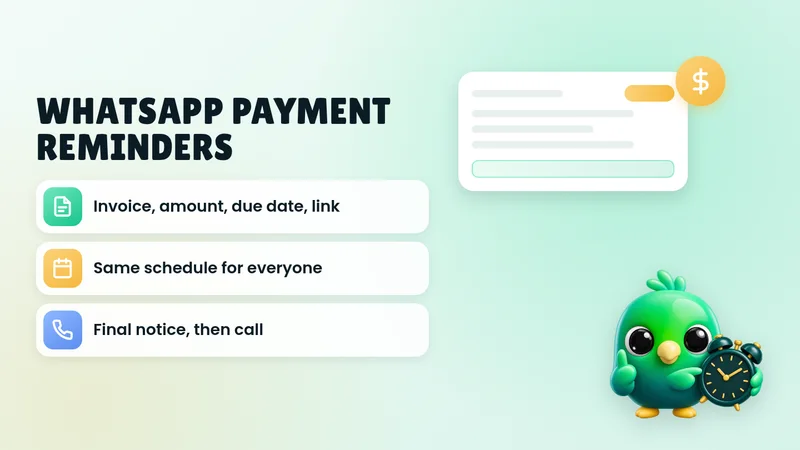
Only chase payment with people who already confirmed the order. A stranger who asked one price question has not ordered and has not opted in to payment reminders. Our guide to collecting WhatsApp opt-in without the API covers marketing lists; payment chase for an order they confirmed is part of that conversation, not a broadcast. If a balance or invoice runs past its due date, our WhatsApp payment reminder templates give you a polite schedule from due date to final notice.
Step 4: Send one update per status change
One clear update beats a drip of "just packing now" messages. A good default for most product sellers:
- Paid / preparing: only if there will be a long wait before shipping
- Shipped / out for delivery: include tracking number in plain text and the tracking link on its own line
- Ready for pickup: include place, time window and what to bring
- Delivered / collected: short close, plus how to report a problem
- Delayed: send as soon as you know, with a new date and an easy out
Shipped with tracking
Hi [name], order [short ref] has shipped with [courier]. Tracking number [number]. Track here: [link]. Expected [day/date].
Ready for pickup
Hi [name], order [short ref] is ready to collect at [place] between [hours] today. Reply when you're on the way.
Delivered / collected
Thanks, order [short ref] is marked delivered. If anything is missing or damaged, reply here today and I'll sort it.
Delayed
Quick update on order [short ref]: it's delayed and should reach you by [new date]. Sorry about the wait. Reply if you'd rather cancel or change the address.
Do not bundle a sale or upsell into a shipping update. Keep transactional messages transactional. If you later want a review request, send it separately after they have had the product, and only if that fits how you already ask for feedback. Our guide to asking for Google reviews on WhatsApp has wording that stays within Google's and the FTC's rules.
If you send many updates by hand, keep the tone personal and the volume modest. Our post on whether a WhatsApp Web extension can get your number banned explains why unexpected bulk messages raise risk, and WhatsApp broadcast limits covers sensible sending habits.
Step 5: Close the order after it arrives
Open order lists go stale. After delivery or pickup:
- Mark the chat Delivered / Done (or keep Won for the sale and use a post-sale stage for fulfilment).
- Add a one-line note: delivered on time, delayed, damaged, returned, or left a review.
- If they might reorder (refills, restocks, seasonal), set a light reminder for yourself, not a marketing blast, unless they opted in.
A weekly tidy takes ten minutes: scan every chat still marked Paid or Shipped whose promised date is in the past, and close or chase it.
Simple stages for product orders
You do not need a twelve-stage funnel. Six stages cover most small shops:
| Stage | Meaning | Your next move |
|---|---|---|
| Enquiry | Asked about a product | Qualify and quote |
| Confirmed | They replied YES to the order | Take payment or prepare COD |
| Paid | Money received (or COD locked in) | Pack / make |
| Shipped / Ready | Courier booked or pickup set | Send the one update |
| Delivered | Arrived or collected | Close; note outcome |
| Issue / Returned | Problem or return | Resolve, then close |
Service businesses that book slots rather than ship parcels should use the appointment loop in how to book appointments on WhatsApp instead. Real estate and other sales-led trades can keep a wider sales pipeline and treat fulfilment as notes inside Won. Our post on managing WhatsApp leads without the API walks through that wider system, and the daily WhatsApp Web sales workflow shows how to fit packing and delivery messages into a morning and afternoon pass.
Copy-paste set for common order moments
Swap the brackets. Keep each message under a few lines.
| Moment | Message |
|---|---|
| Confirm | Confirming: [items]. Total [amount]. [Delivery to … / Pickup at …]. Reply YES or tell me what to change. |
| Payment | Please pay [amount] via [method/link] for order [ref]. Reply PAID when done. |
| COD check | COD order [ref] for [amount]. Reply YES if the address [address] is still correct before we pack. |
| Shipped | Order [ref] shipped with [courier]. Tracking [number]. Link: [url]. ETA [date]. |
| Ready for pickup | Order [ref] is ready at [place], [hours]. Reply when you're coming. |
| Delivered | Order [ref] marked delivered. Reply today if anything is wrong. |
| Delay | Order [ref] is delayed to [new date]. Reply if you'd rather cancel or update the address. |
For longer follow-ups after a quote rather than an order, use our 20 WhatsApp follow-up message templates. For quiet past buyers, see how to reactivate cold WhatsApp leads.
Mistakes that create "where's my order?" chats
- Vague confirms. "Will send soon" without items, total or address.
- No single order record. Confirming in chat but never writing the tracking number down.
- Update spam. Three "still packing" messages teach people to ignore you.
- Asking for card numbers in chat. Against WhatsApp's Business Messaging Policy; use a payment link instead.
- Broadcasting stock drops to people who never opted in. That is marketing, and it needs opt-in.
- Leaving Delivered chats in Paid. Your list stops meaning anything.
- Promising a date you cannot keep. A late honest delay message is better than silence.
Where InboxCRM fits
InboxCRM is a WhatsApp CRM Chrome extension for WhatsApp Web. It does not replace a full ecommerce platform, and it is not a shared warehouse system. It helps when you already take orders in chat and want the confirmation, the tracking note and the stage beside the conversation, without moving to the WhatsApp Business API.
- Order and delivery records next to the chat. Record what each customer ordered and the courier tracking code, then send the tracking link from a saved template. Try the orders and deliveries tutorial or the order manager tutorial in your browser first (fictional data; nothing is sent).
- Pipeline stages for fulfilment. Create stages such as Confirmed, Paid, Shipped and Delivered on a board, then move each chat with "Move to stage" or right-click "Add to CRM stage…". The CRM pipeline guide shows the setup, or try the interactive pipeline tutorial.
- Notes next to the chat. Store size, address quirks and promised dates in the Notes tab so you do not scroll the thread before every update. See the chat tools panel guide.
- Saved order replies. Quick replies can hold text and, unlike the Business app on Web, media steps when you need a packing photo or a map. The quick replies guide covers it.
- Personal reminders for you. Notifications can alert you with a Chrome notification and send nothing to the customer, which is useful for "hand to courier by 3pm" or "check delayed parcel". See the notifications guide.
- Stock awareness. If you sell limited units from chat, the stock manager tutorial shows how product quantities update as you sell from a conversation.
Honest limits: CRM records stay in Chrome on your device (chrome.storage.local), not on an InboxCRM server. Scheduled messages and follow-up rules only send while Chrome and WhatsApp Web are open. InboxCRM is a single-user extension, not a shared team inbox, and it does not run inside the WhatsApp mobile app. Follow-up rules and scheduled messages are not paced by the campaign sending-safety layer, so keep order updates personal and low volume. If that matches how you work, you can add InboxCRM to Chrome.
Frequently asked questions
Can I confirm orders on WhatsApp without the Business API?
Yes. Most solo sellers and small shops confirm items, total and delivery details in chat, write the order down, take payment through a link or transfer, and send one update when status changes. The API and ecommerce bots help when volume or team size outgrows that routine.
What should a WhatsApp order confirmation say?
Restate the items (with size or colour), the total, delivery or pickup details, then ask for a YES. Example: "Confirming: [items]. Total [amount]. Delivery to [address]. Reply YES to confirm, or tell me what to change."
How do I send a WhatsApp delivery or tracking update?
Send one short message when the status changes. For shipped orders, include the courier name, the tracking number in plain text and the tracking link on its own line, plus an expected day if you have one. Do not mix in offers.
Do I need the WhatsApp Business API for order updates?
Not for a low daily volume. Utility templates on the API help when you ship many orders automatically from a storefront. For a handful of paid orders a day, a confirmation message, a simple record and one status update are enough.
Sources
- How to use quick replies, WhatsApp Help Center, checked 3 October 2026
- Staying organized as a small business using Lists and quick replies on WhatsApp, WhatsApp for Business, checked 3 October 2026
- How to use labels, WhatsApp Help Center, checked 3 October 2026
- How to use click to chat, WhatsApp Help Center, checked 3 October 2026
- About linked devices, WhatsApp Help Center, checked 3 October 2026
- WhatsApp Business Messaging Policy, WhatsApp, checked 3 October 2026
InboxCRM is a WhatsApp CRM for WhatsApp Web. Pipeline, notes, follow-ups and quick replies beside every chat, with your CRM data kept in your browser.
Add InboxCRM to Chrome