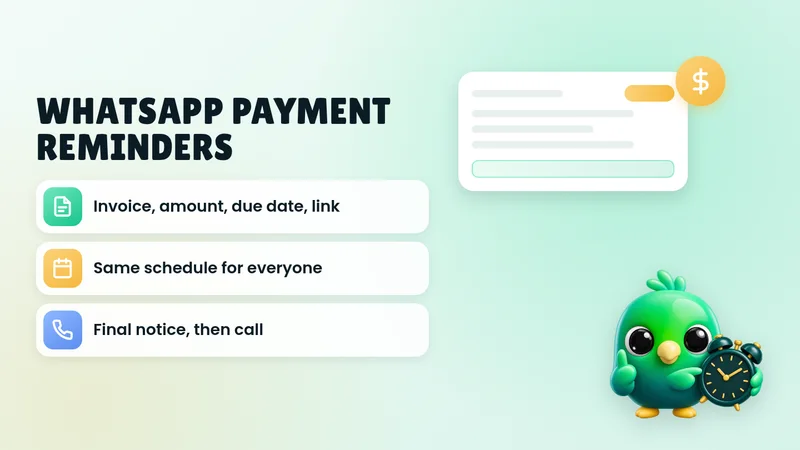
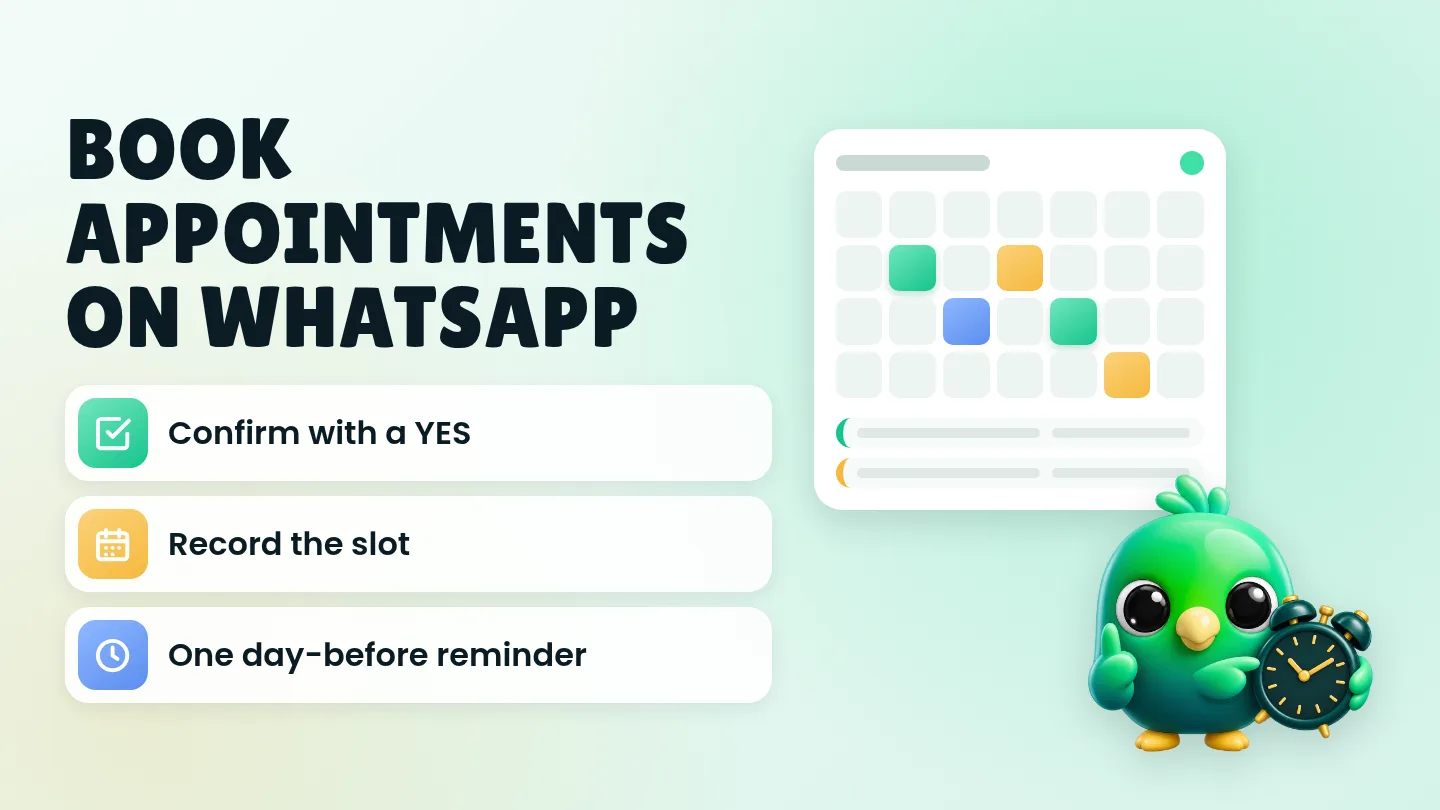
To book an appointment on WhatsApp without a booking bot, ask for the service, date and time in short messages, send a clear confirmation they can reply YES to, write the booking down where you will see it tomorrow, and send one reminder the day before. That loop works in the free WhatsApp Business app and on WhatsApp Web. You do not need the WhatsApp Business API or a calendar chatbot for a solo seller or a two-person shop.
This post is part of our guide to WhatsApp CRM for small business. If leads are messy before they ever book, start with how to qualify leads on WhatsApp.
Last updated 1 October 2026. WhatsApp features mentioned here were checked against the WhatsApp Help Center and WhatsApp Business Messaging Policy on that date.
Why WhatsApp bookings fall through
Most small businesses already take bookings in chat. The problem is rarely "we need a bot". It is usually one of these:
- The customer said "Thursday at 3" and you never wrote it down.
- You confirmed the day but not the time, or the service, so they arrive for the wrong thing.
- Nobody sent a reminder, so they forgot.
- Two people answered the same number and double-booked the slot.
A booking bot can help when dozens of people are booking every hour. For a salon, tutor, clinic, letting agent or coach with a handful of appointments a day, a tight human routine is enough, and it feels more personal.
The five-step booking loop
Use the same five steps for every appointment chat. Keep each message short.
| Step | What you do | Done when |
|---|---|---|
| 1. Capture | Ask what they need, which day and which time | You know service, date and time |
| 2. Confirm | Send one message that restates all three and asks for a YES | They reply YES (or ask to change) |
| 3. Record | Write the booking somewhere you will check tomorrow | It is not only in your memory |
| 4. Remind | Send one reminder the day before | They still have the slot, or they reschedule early |
| 5. Close | After the appointment, mark it done and archive or move the stage | Your list only shows live bookings |
That is the whole system. The rest of this post gives you the wording, a simple stage list and where to keep the records.
Step 1: Capture the booking in three short questions
Do not ask for everything in one message. One question per message keeps people answering.
- Service: "Which service would you like?"
- Day: "Which day works for you?"
- Time: "Morning or afternoon, and roughly what time?"
If you already publish available slots (a Google Calendar link, a weekly Instagram story, or a short list you paste), offer two or three options instead of an open question. People book faster when they pick from a short list.
For businesses that also need a location or a person, add one more question only after the slot is clear: "Is this for you, or are you booking for someone else?" or "Home visit or in the studio?"
Tip: If the first message is only "Hi, are you free Thursday?", answer the availability first, then ask which service. People share details more readily once they know a slot is open.
Step 2: Send a confirmation they can reply YES to
A confirmation is not "Ok see you then". Restate every detail and make the next step a one-word reply.
Confirmation (copy and edit)
Hi [name], you're booked for [service] on [day, date] at [time] at [place / Zoom / home visit]. Reply YES to confirm, or tell me a better time and I'll update it.
When they reply YES, send a short thank-you and stop. Do not bury the details in a long welcome pack yet. You can send prep instructions in a second message:
Great, you're confirmed. Please arrive 5 minutes early. If you need to change, message me here at least [X hours] before.
Save both as quick replies. WhatsApp's help page on quick replies says the WhatsApp Business app can store up to 50, and you insert one with a shortcut (often by typing "/"). The same page notes that media files are not supported in quick replies on WhatsApp Web or Desktop, so keep booking confirmations as text if you work from the computer.
You can also draft and polish wording with the free WhatsApp message templates tool.
Step 3: Record the booking where you will see it
Confirmation without a record is how double-bookings happen. Pick one place and stick to it.
| Where | Good for | Watch out for |
|---|---|---|
| Phone calendar or Google Calendar | Alarms and travel time | Easy to forget to update when the chat changes |
| Spreadsheet | Several staff, simple counts | Double entry if you also use labels |
| Labels or lists in WhatsApp Business | A quick "Booked" / "Reminded" marker on the chat | A label cannot hold date, time and service cleanly |
| Pipeline stages + notes | Seeing every open booking beside the chat | Needs a short daily glance |
Minimum fields to write down for every booking:
- Customer name (as they use it in chat)
- Service
- Date and time
- Place or channel (studio, home, video call)
- Deposit paid? (yes / no / not required)
- Reminder sent? (yes / no)
If you are still using a sheet for the wider pipeline, our WhatsApp sales pipeline template has columns you can adapt for appointment date and next follow-up. For the difference between a label and a real stage, see WhatsApp labels vs a real CRM.
Step 4: Send one reminder (not five)
One clear reminder beats a drip of "just checking" messages. A good default for most service businesses:
- Day before, mid-morning: reminder with the same details as the confirmation
- Optional morning-of: only for high no-show services (first visits, early slots), and only if the customer expects it
Day-before reminder
Hi [name], reminder that you're booked for [service] tomorrow ([day, date]) at [time] at [place]. Still good for you? Reply YES, or tell me if you need to reschedule.
Reschedule reply
No problem. I can do [option A] or [option B]. Which works better?
Cancel / release the slot
Thanks for letting me know. I've freed the slot. Message me here when you'd like to book again.
Only message people who already booked with you, or who opted in to hear from you. WhatsApp's Business Messaging Policy says you may only contact people who have given you their mobile number and opted in to receive subsequent messages, and that you must respect requests to stop. A stranger who asked one price question has not booked an appointment and has not opted in to reminders. Our guide to collecting WhatsApp opt-in without the API covers how to ask properly for marketing lists. Booking reminders for an appointment they requested are part of that conversation, not a broadcast.
If you send many reminders by hand, keep the tone personal and the volume modest. Our post on whether a WhatsApp Web extension can get your number banned explains why unexpected bulk messages raise risk.
Step 5: Close the booking after it happens
Open booking lists go stale. After the appointment:
- Mark the chat Done / Completed (or Won, if you treat the visit as a sale).
- Add a one-line note: showed up, no-show, rescheduled, or bought an add-on.
- If they should rebook (haircut in six weeks, next tutoring block), set the next date now while you remember.
A weekly tidy takes ten minutes: scan every chat still marked Booked whose date is in the past, and close or rebook it.
Simple stages for appointment businesses
You do not need a twelve-stage funnel. Five stages cover most salons, clinics, tutors and agents:
| Stage | Meaning | Your next move |
|---|---|---|
| New enquiry | Asked about availability or a service | Qualify and offer slots |
| Slot offered | You proposed times | Wait for their pick |
| Booked | They confirmed | Record + schedule reminder |
| Reminded | Day-before message sent | Deliver the appointment |
| Done / No-show | Visit finished or missed | Note outcome; rebook if useful |
Real estate and other sales-led trades can keep a wider sales pipeline (Lead, Qualified, Proposal, Won, Lost) and treat the viewing as a date inside the notes. Our post on managing WhatsApp leads without the API walks through that wider system, and the daily WhatsApp Web sales workflow shows how to fit bookings into a morning and afternoon pass.
Greeting and away messages that support booking
The WhatsApp Business app can send a greeting message the first time someone messages you, or after 14 days of inactivity, according to WhatsApp's help page on greeting messages. An away message can send always, on a custom schedule, or outside the business hours you set in your profile, according to the away messages help page.
Use them to set expectations, not to run a fake booking form.
Greeting (example)
Hi, thanks for messaging [Business]. We reply within [X] during [hours]. Tell us the service and a few days that work, and we'll offer times.
Away (example)
Thanks for your message. We're away until [time/day] and will reply then. If you're booking, send the service and preferred days so we can check the diary when we're back.
Do not put your full questionnaire or payment details in the greeting. Nobody has told you what they want yet.
Copy-paste set for common booking moments
Swap the brackets. Keep each message under a few lines.
| Moment | Message |
|---|---|
| Offer two slots | I can do [day] at [time] or [day] at [time] for [service]. Which do you prefer? |
| Confirm | You're booked for [service] on [date] at [time] at [place]. Reply YES to confirm. |
| Deposit (only if you already use them) | To hold the slot, the deposit is [amount]. Reply when you've sent it and I'll mark you as paid. |
| Day-before reminder | Reminder: [service] tomorrow at [time] at [place]. Still good? Reply YES or send a new time. |
| Running late | I'm running about [X] minutes behind. Happy to start late or move you to [new time]. What works? |
| Aftercare / rebook | Thanks for coming in. Next [service] is usually around [period]. Want me to pencil [date]? |
For longer follow-ups after a quote rather than a booking, use our 20 WhatsApp follow-up message templates.
Mistakes that create no-shows
- Vague confirms. "See you Thursday" without a time or service.
- No single diary. Confirming in chat but never adding the calendar event.
- Reminder spam. Three "just checking" messages teach people to ignore you.
- Broadcasting open slots to people who never asked. That is marketing, and it needs opt-in.
- Asking for sensitive details in chat. WhatsApp's Business Messaging Policy says not to ask people to share full payment card numbers, financial account numbers, personal ID card numbers or other sensitive identifiers. Send a proper payment link instead of asking for card numbers in WhatsApp.
- Leaving Done chats in Booked. Your list stops meaning anything.
Where InboxCRM fits
InboxCRM is a WhatsApp CRM Chrome extension for WhatsApp Web. It does not replace a full online booking site, and it is not a multi-staff calendar. It helps when you already book in chat and want the confirmation, the reminder and the stage beside the conversation, without moving to the WhatsApp Business API.
- Pipeline stages for bookings. Create stages such as Slot offered, Booked, Reminded and Done on a board, then move each chat with "Move to stage" or right-click "Add to CRM stage…". The CRM pipeline guide shows the setup, or try the interactive pipeline tutorial in your browser first.
- Notes next to the chat. Store service, date, time and deposit status in the Notes tab so you do not scroll the thread before every reminder. See the chat tools panel guide.
- Scheduled confirmation or reminder messages. The Scheduling Center lets you write a message now and send it at a date and time you choose. Chrome must be running with WhatsApp Web open at send time. Details are in the scheduling guide.
- Personal reminders for you. Notifications can alert you with a Chrome notification and send nothing to the customer, which is useful for "call to confirm" or "prep the room at 2pm". See the notifications guide.
- Saved booking replies. Quick replies can hold text and, unlike the Business app on Web, media steps when you need a map photo or price list. The quick replies guide covers it.
- A booking link in your bio or site. Build a wa.me link with a pre-filled "I'd like to book…" message using the free WhatsApp link generator, or a QR code for your counter.
Honest limits: CRM records stay in Chrome on your device (chrome.storage.local), not on an InboxCRM server. Scheduled messages and follow-up rules only send while Chrome and WhatsApp Web are open. InboxCRM is a single-user extension, not a shared team inbox, and it does not run inside the WhatsApp mobile app. Follow-up rules and scheduled messages are not paced by the campaign sending-safety layer, so keep booking reminders personal and low volume. If that matches how you work, you can add InboxCRM to Chrome.
Frequently asked questions
Can I book appointments on WhatsApp without the Business API?
Yes. Most solo sellers and small shops take bookings in the WhatsApp Business app or WhatsApp Web by confirming the service, date and time in chat, writing them down, and sending a reminder. The API and booking bots help when volume or team size outgrows that routine.
How do I send a WhatsApp appointment reminder?
Send one short message the day before that repeats the service, date, time and place, and ask the customer to reply YES or suggest a new time. Save it as a quick reply so you are not retyping it. Only remind people who already booked with you.
What should a WhatsApp appointment confirmation say?
Restate the service, day, date, time and place, then ask for a YES. Example: "You're booked for [service] on [date] at [time] at [place]. Reply YES to confirm, or send a better time."
Do I need a booking bot for WhatsApp?
Not for a low daily volume. A bot or API calendar integration helps when many people book in parallel or several staff share one inbox. For a handful of appointments a day, a confirmation message, a diary and one reminder are enough.
Sources
- How to use greeting messages, WhatsApp Help Center, checked 1 October 2026
- How to use away messages, WhatsApp Help Center, checked 1 October 2026
- How to use quick replies, WhatsApp Help Center, checked 1 October 2026
- How to use click to chat, WhatsApp Help Center, checked 1 October 2026
- About linked devices, WhatsApp Help Center, checked 1 October 2026
- WhatsApp Business Messaging Policy, WhatsApp, checked 1 October 2026
InboxCRM is a WhatsApp CRM for WhatsApp Web. Pipeline, notes, follow-ups and quick replies beside every chat, with your CRM data kept in your browser.
Add InboxCRM to Chrome