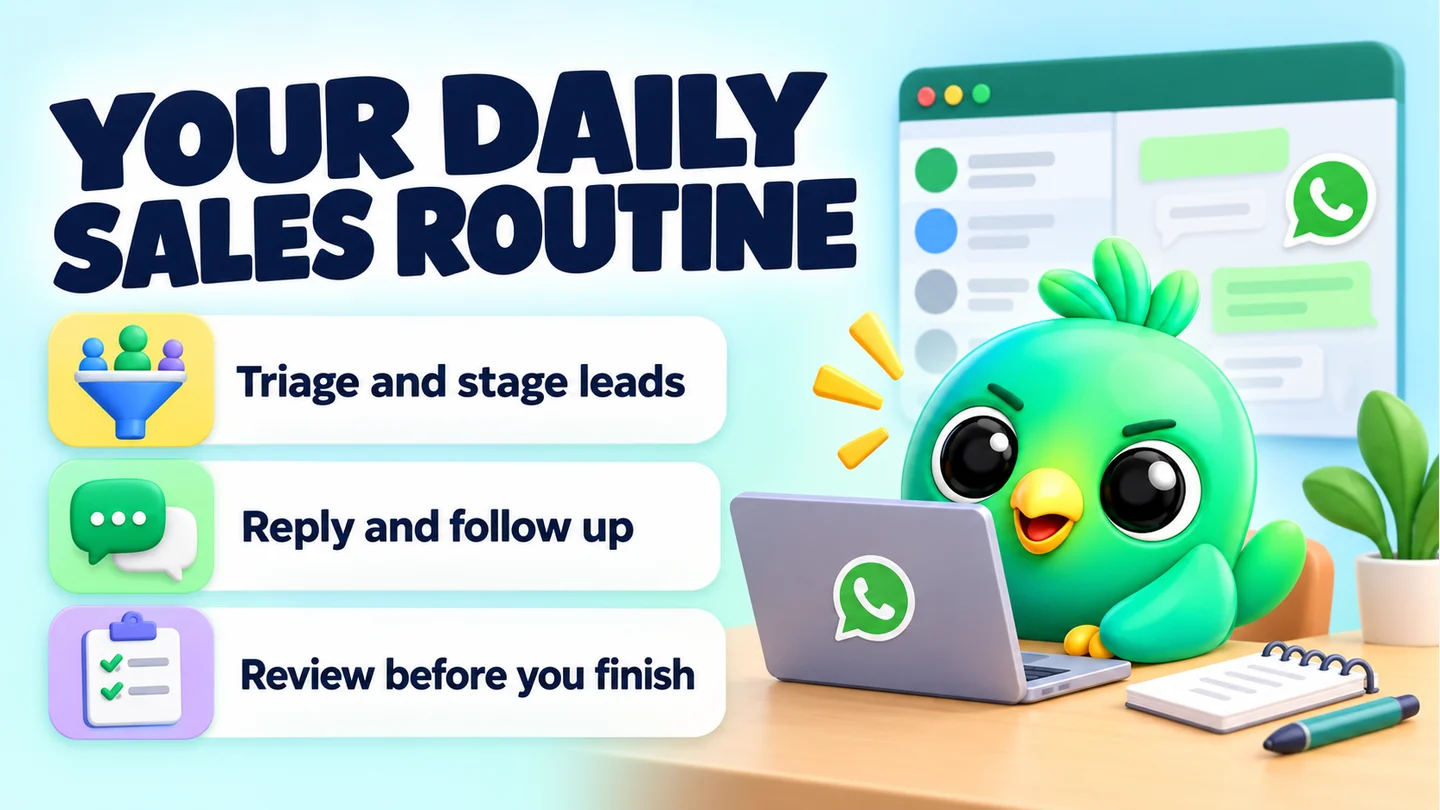
To use WhatsApp Web for sales, treat it as your sales desk rather than a chat window. Link your WhatsApp Business app to WhatsApp Web on your computer, then work through the same four blocks every day: sort new leads, give every open chat a stage, answer with saved replies, and send the follow-ups that are due. The routine below takes about an hour spread across the day and works whether you use the WhatsApp Business app alone or add a CRM on top.
This post is part of our guide to running a WhatsApp CRM for a small business without the API. It's written for one to three people selling on WhatsApp: a cake seller taking custom orders, a phone shop answering price questions, a real estate agent booking viewings. Those are illustrations, not customers, but the routine fits all three.
Last updated: 23 September 2026. Checked against the WhatsApp Help Center pages listed in Sources.
Why use WhatsApp Web for selling at all?
Your phone is fine for replying but poor at managing. You see a handful of chats at once, and it's easy to answer the newest message while an older lead goes cold.
WhatsApp Web gives you a full keyboard, a bigger chat list and room to keep a spreadsheet, catalogue or order sheet open beside it. According to WhatsApp's help page on linked devices, you can link up to four devices to your primary phone. Linked devices keep working when the phone is offline, but they log out if the phone goes unused for more than 14 days. So you can leave the phone on the counter and run the day from the laptop.
There are a few gaps to know about before you commit:
- WhatsApp's broadcast list help page says broadcast lists aren't supported on Windows, Mac or Web. You create and send them from the phone.
- WhatsApp's quick replies help page says you can store up to 50 quick replies, and that media files aren't supported in quick replies on Web or Desktop. Keep photo and document replies for the phone.
- WhatsApp is gradually replacing labels with "lists" on the WhatsApp Business app. The help pages say you can create up to 20 labels, and lists have the same 20 cap.
None of these stops you selling from WhatsApp Web. They just shape where each task happens.
The daily routine at a glance
| Block | When | What you do | Time |
|---|---|---|---|
| 1. Triage | First thing | Reply to every new lead and give each one a stage | 15–20 min |
| 2. Pipeline pass | Late morning | Scan open deals by stage and move the ones that changed | 10 min |
| 3. Reply windows | Two or three times a day | Answer questions from saved replies and write notes as you go | 10–15 min each |
| 4. Follow-ups | Mid-afternoon | Send every follow-up that is due, then stop | 10–15 min |
| 5. Close the day | Last thing | Check nothing is waiting on you and set tomorrow's reminders | 5–10 min |
The times are rough guides, not targets. A busy phone shop might run block 3 five times; a real estate agent with ten live leads might fold blocks 2 and 4 together. The order matters more than the minutes.
Block 1: Triage new leads first
Start with chats from people who have never bought from you. The sooner a new lead hears back, the less time they spend asking someone else.
- Open the unread chats and filter to unread if your setup offers it.
- Reply to each new person, even if it's only to say you'll send prices shortly. A short, human first reply beats a perfect one hours later.
- Ask one qualifying question. The cake seller asks for the date and number of guests. The phone shop asks which model and storage size. The agent asks for budget and area.
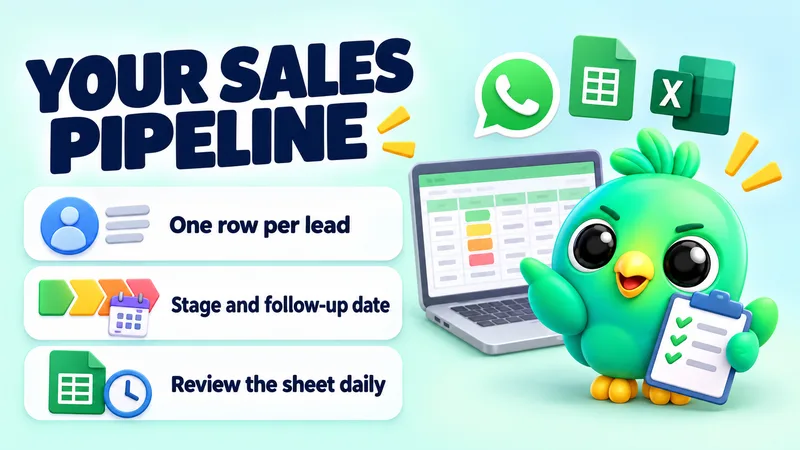
- Give the chat a stage before you move on. "New", "Quote sent", "Waiting on customer", "Won" and "Lost" are enough to start with. If you want a ready-made set, our WhatsApp sales pipeline template has stages and columns you can copy.
The rule for this block: no new chat leaves triage without a stage.
Block 2: Do a quick pipeline pass
Once new leads are handled, look at your open deals by stage rather than by who messaged last.
- Quote sent: has anyone replied? If they have, move them on. If not, note when the quote went out.
- Waiting on customer: is anyone waiting on you instead? Things like a photo, a delivery date or a bank detail.
- Won: has the order been paid, packed or delivered? Move it to the right post-sale stage so it doesn't clutter your sales view.
With the WhatsApp Business app alone, you do this by opening each label or list and scrolling through it. With a pipeline board you see every stage side by side and drag a chat across when it changes. Either way, the pass should take ten minutes. If it takes longer, you probably have too many stages. Merge them.
Your chat list only tells you who wrote last. The pipeline tells you who is closest to paying.
Block 3: Reply windows with saved answers
Most sales questions repeat. Price, delivery charge, how to pay, opening hours, warranty. Answer them from saved text so every customer gets the same clear reply and you don't retype it twenty times.
Batch replies into two or three windows a day rather than reacting to every notification. Customers still hear back within hours, and you keep time for the actual work.
Good saved replies share a few habits:
- Short. Three or four lines, then a question that moves the sale on ("Would you like me to reserve one for you?").
- Personal. Leave a [name] or [product] gap and fill it in, rather than sending a block that could go to anyone.
- Formatted for reading on a phone. Bold the price, put each option on its own line. Our free WhatsApp text formatter shows how bold, italic and lists will look before you send.
If you're starting from nothing, the free WhatsApp message templates include greeting, order, follow-up and payment messages you can adapt.
Write a note as you go. When a customer tells you something you'll need later, such as a size, a date, an allergy or a budget ceiling, write it down straight away. On the WhatsApp Business app that might be a note on the contact or a spreadsheet row. The point is that tomorrow's you shouldn't have to scroll up forty messages to find it.
Tip: Keep a "reply bank" document open beside WhatsApp Web while you build your saved replies. When you type the same answer twice in one week, it earns a place in the bank.
Block 4: Follow-ups, at the same time every day
This is where leads most often slip away. A customer asks for a quote, you send it, they go quiet, and the chat sinks under new messages. Nobody decides to drop the lead. It just happens.
Fix it with a fixed follow-up slot:
- Open the Quote sent and Waiting on customer stages.
- For each chat, check the date of your last message.
- Send a follow-up to anyone who has been quiet for your chosen gap (two to three days is a common first step).
- Move anyone who says no, or who hasn't replied after your last polite follow-up, to Lost. A clean pipeline is worth more than a hopeful one.
Keep follow-ups short, friendly and easy to say no to. For ready-to-send wording by timing, see our 20 WhatsApp follow-up message templates, which run from same-day nudges to a last message a month later.
Only follow up with people who contacted you or asked you to get in touch. WhatsApp's guidance on responsible use says to message people who contacted you first or asked to be contacted, and to stop if someone asks you to.
Block 5: Close the day in ten minutes
Before you shut the laptop:
- Nothing waiting on you. Scan for chats where the customer's message is the last one. Reply or set a reminder.
- Tomorrow's reminders set. A viewing at 10am, a cake collection at noon, a callback you promised.
- Stages tidy. Anything that changed today should be in its new stage.
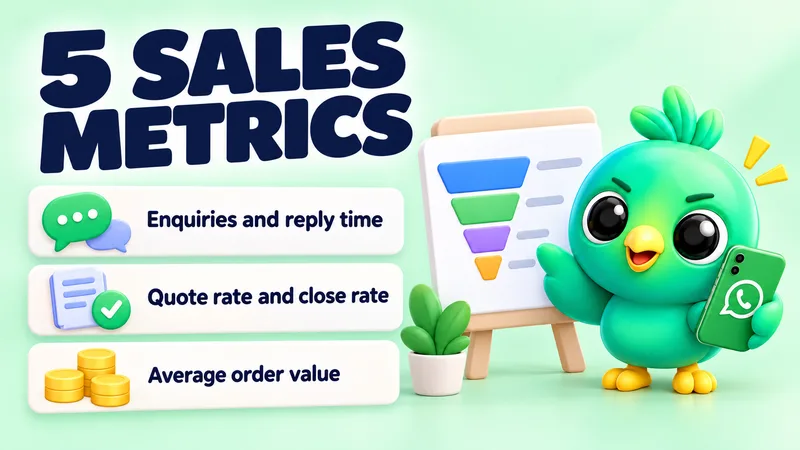
- Numbers jotted down. How many new leads, quotes sent and orders won today. It takes a minute and pays off at the weekly review.
Once a week: review the numbers
Set aside half an hour on a quiet day. Count how many leads came in, how many got a quote, how many paid, and where most of them stopped. If lots of leads never get a quote, your first reply or qualifying question needs work. If lots of quotes go quiet, look at your price presentation and follow-up timing.
We cover which figures to track, and how to work them out from a simple sheet, in the five WhatsApp sales funnel numbers small sellers should track.
Running the routine with only the WhatsApp Business app
You can run this whole workflow with the free WhatsApp Business app and WhatsApp Web. Here's how the pieces map:
| Workflow step | WhatsApp Business app + Web | Spreadsheet alongside |
|---|---|---|
| Stages | Labels or lists (up to 20, per WhatsApp's help pages) | A "Stage" column |
| Saved answers | Quick replies (up to 50; no media on Web) | A reply bank document |
| Notes | Contact info, or your own notes | A "Notes" column per lead |
| Follow-up timing | Manual, from memory or a calendar | A "Next follow-up" date column |
| Weekly numbers | Count by hand | Simple formulas |
This works well up to a few dozen live conversations. The strain usually shows in two places: labels tell you what a chat is but not when to act on it, and the spreadsheet drifts out of date because updating it is a separate job. If that sounds familiar, our comparison of WhatsApp labels vs a real CRM walks through where the line sits.
Running it with a CRM inside WhatsApp Web
A WhatsApp CRM extension moves the spreadsheet into WhatsApp Web itself, so updating it becomes part of replying rather than a second job.
InboxCRM is one such WhatsApp CRM, a Chrome extension that adds a sales layer to WhatsApp Web without the WhatsApp Business API. Here's how it lines up with each block:
- Triage and pipeline pass: a drag-and-drop kanban board with your own stages and deal values. From the chat tools panel, you can move the open chat to a stage, add a note or send a saved reply without leaving the conversation.
- Reply windows: quick replies that can be plain text or a sequence of text, photos, video, voice notes and documents, plus text macros for phrases you type often. See the quick replies guide.
- Follow-ups: follow-up rules watch a pipeline stage and message a chat after it has sat there for the time you set, for example three days in "Quote sent". A "Stop if chat replied" option skips anyone who already wrote back. Personal reminders with a Chrome notification cover callbacks you want to make yourself.
- Weekly review: sales funnel and messaging reports show where deals stall.
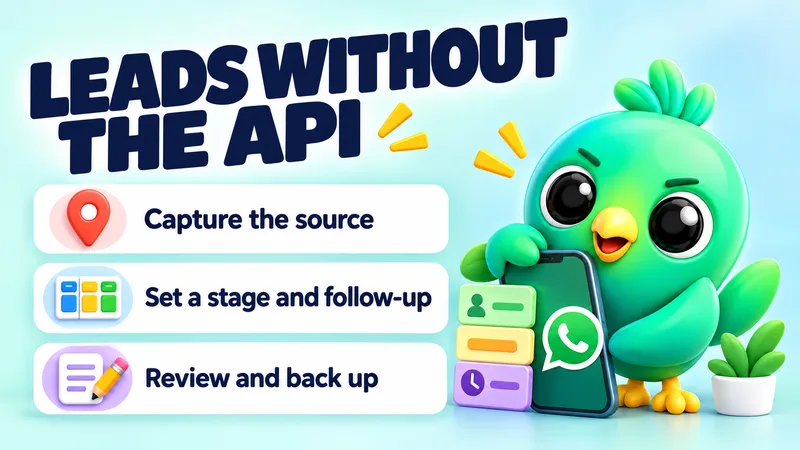
A few honest limits. Follow-up rules and scheduled messages send through your open WhatsApp Web session, so Chrome must be running with WhatsApp Web open at the time they're due. CRM records are stored locally in your browser rather than on a shared server, which is good for privacy, but it also means it's a single-user tool, not a shared team inbox. Use the built-in backup so you have a copy. And any automated message, from any tool, should only go to people who expect to hear from you.
If you'd rather see it working first, the interactive pipeline tutorial runs in your browser and walks through setting up stages step by step.
Common mistakes that break the routine
- Replying in order of arrival. The newest message isn't the most valuable. Triage by stage.
- Follow-ups "when I remember". Put them in a fixed daily slot or they won't happen.
- Leaving dead leads open. Move them to Lost after your last polite message. You can always reopen a chat if they come back.
- Messaging lists of people who never contacted you. It's the fastest way to get reported. WhatsApp's help pages say accounts that are reported multiple times can be banned.
- Letting customer details live only in chat history. Write the note while you're in the chat.
A sample day for a solo seller
To make this concrete, here's how a home cake seller might run the routine on a Tuesday. This is an illustration, not a real customer.
- 8:30: Six new chats overnight. Replies to all six, asks each for the event date and number of guests, and puts them in "New".
- 10:30: Pipeline pass. Two customers from yesterday have sent their dates. She sends quotes and moves them to "Quote sent". One paid order moves to "Baking this week".
- 12:00 and 16:00: Reply windows. Delivery charge and flavour questions answered from saved replies. A note goes on one contact: "nut allergy, no almond sponge".
- 15:00: Follow-ups. Three quotes have been quiet for two days, so she sends a short nudge to each. One customer from last month who never replied goes to "Lost".
- 18:00: Close. Two chats are waiting on her, so she answers one and sets a reminder for the other. She jots down today's numbers: six new leads, two quotes and one order.
Frequently asked questions
Can I use WhatsApp Business on WhatsApp Web?
Yes. You link WhatsApp Web to the WhatsApp Business app on your phone by scanning a QR code or using your phone number. WhatsApp's help page says you can link up to four devices, and they keep working while the phone is offline unless it goes unused for over 14 days.
Does WhatsApp Web work if my phone is off?
Yes, linked devices work without your phone being online. They log out if your primary phone is unused for more than 14 days, according to WhatsApp's help page on linked devices.
Can I send broadcast messages from WhatsApp Web?
WhatsApp's help page says broadcast lists aren't supported on Windows, Mac or Web, so you create and send them from your phone. See our guide to WhatsApp broadcast limits for the list size and who receives them.
Sources
- About linked devices — WhatsApp Help Center, checked 23 September 2026
- How to use broadcast lists — WhatsApp Help Center, checked 23 September 2026
- How to use labels — WhatsApp Help Center, checked 23 September 2026
- How to use lists — WhatsApp Help Center, checked 23 September 2026
- How to use quick replies — WhatsApp Help Center, checked 23 September 2026
- How to use WhatsApp responsibly — WhatsApp Help Center, checked 23 September 2026
InboxCRM is a WhatsApp CRM for WhatsApp Web. Pipeline, notes, follow-ups and quick replies beside every chat, with your CRM data kept in your browser.
Add InboxCRM to Chrome