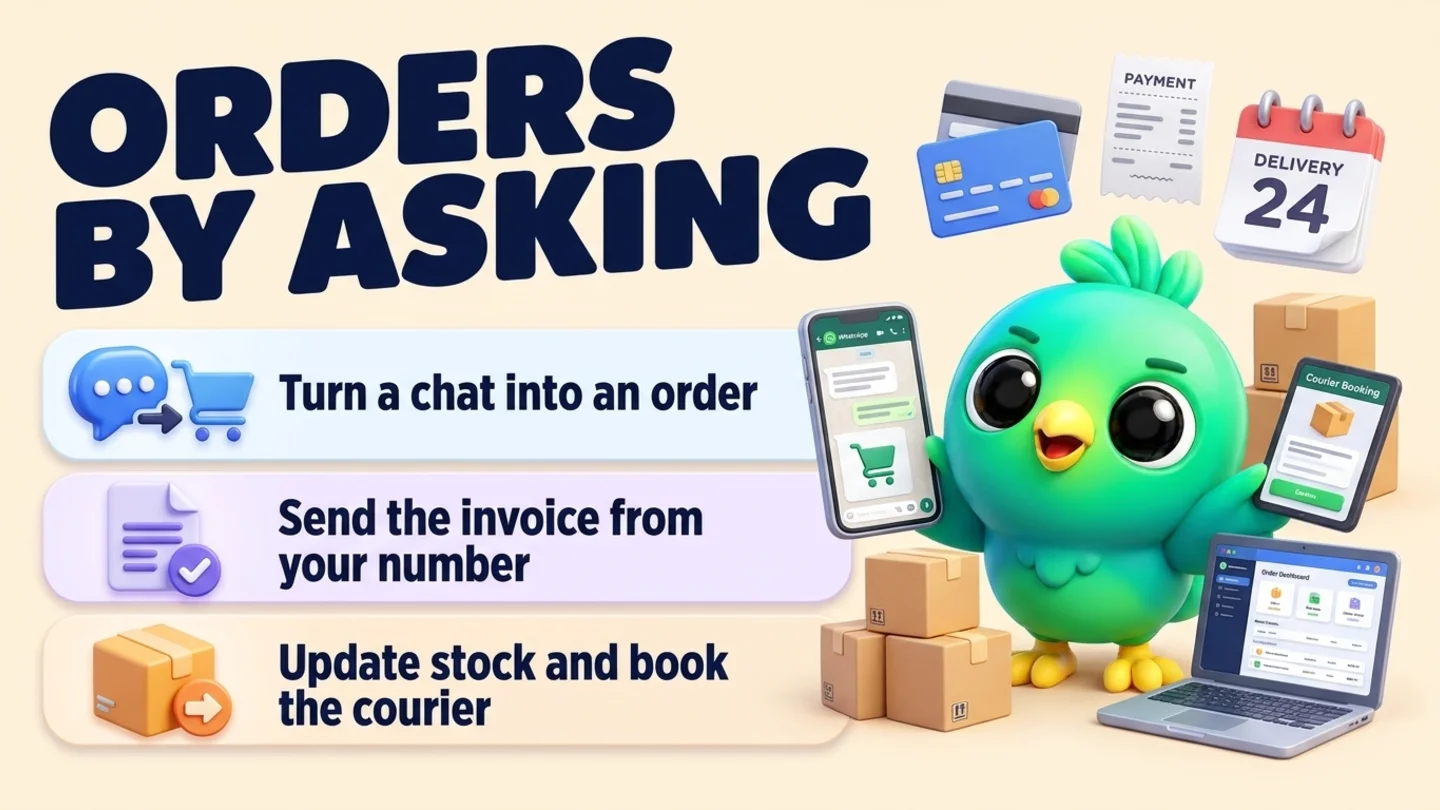
To manage WhatsApp orders with Claude or ChatGPT, connect the AI app to InboxCRM's MCP connector, then ask for each step in plain words: "Create an order for Kamal from this chat", "Send him the invoice", "Mark it paid", "Book the parcel with Koombiyo", "How much did we sell today?" The AI reads the chat, fills in the order, sends the document from your own WhatsApp number and updates your stock and reports, all in your own WhatsApp Web with no Business API. Courier bookings, deletes and anything that drops an order line first show you a preview and wait for your yes.
This post walks through a full day of orders with the prompts to use. If you have not connected an AI app yet, see WhatsApp MCP server setup. For the manual version of the same routine, see confirming orders and delivery updates on WhatsApp. Both are part of our guide to WhatsApp CRM for small business.
Last updated 29 October 2026. Tool behaviour checked against InboxCRM's connector documentation of 28 October 2026.
What the AI can do with your orders
| Job | Tool the AI uses | What happens |
|---|---|---|
| List and find orders | list_orders | Recent orders with customer, status, payment and total |
| Create and edit orders | orders | Create, edit, change status and payment, copy; dropping a line or deleting asks first |
| Send a document | order_documents | The order's quotation, invoice or receipt goes into the customer's chat as a picture |
| Keep stock right | stock | Products, stock moves and history |
| Book a parcel | couriers | Books with your own Koombiyo or Royal Express account (Sri Lanka) after your yes, refreshes tracking, saves a tracking number |
| Log costs | expenses | Expense lines and categories |
| See the numbers | reports | Sales, orders, payments, best sellers, expenses |
Reading orders needs the "read" switch on InboxCRM's Claude tab. Creating, editing and sending documents needs the "change" switch. Both start off.
A day of orders, step by step
1. Morning: catch up on order chats
"Read my unread chats. List anyone who wants to order, with what they asked for and their address if they gave one. Do not reply yet."
The AI reads up to the last 50 messages of each chat and gives you a short list. Nothing is sent. This is the moment to spot missing details before you create anything.
2. Turn a chat into an order
"Create an order for Kamal Perera from his chat: 2 ceramic mugs and 1 gift box, cash on delivery, deliver to No 12, Temple Lane, Nugegoda. If anything is unclear, ask me."
The AI creates the order in InboxCRM with the lines, customer, payment method and address. Put the prices in your request if you want to be sure of them. Ask it to read the order back to you if the chat was messy.
3. Send a quotation or invoice
"Send Kamal the quotation for that order." Later: "He agreed. Confirm the order and send the invoice."
The document goes into his chat as a picture, from your own number, in the same layout InboxCRM uses when you press the button yourself. For quotations that close, see how to send a quote on WhatsApp.
4. Record the payment
"Kamal paid 5,200 by bank transfer. Mark the order paid and send him the receipt."
Check the money in your own bank or payment app before you say it is paid. A screenshot of a transfer is not a payment; the fake-payment trick is covered in WhatsApp scams that target small businesses. If a customer is late, WhatsApp payment reminders has wording that stays friendly.
5. Keep stock right
"Which products are under 5 in stock?" and "We received 50 blue T-shirts size M. Add them to stock."
Stock moves are recorded with history, so you can ask later why a number changed.
6. Book the courier
"Book the parcel for Kamal's order with Koombiyo."
Courier bookings always come back as a preview first: the order, the address, the cash to collect. Say yes and the AI books it with your own courier account, then saves the tracking number on the order. Courier booking works with Koombiyo and Royal Express in Sri Lanka today. Your courier keys are never visible to the AI.
7. Tell the customer it is on the way
"Send Kamal: Your order is on the way with Koombiyo, tracking number [number]. Expect it in 1 to 2 days."
Or make it a quick reply once and ask the AI to send it after each booking. Delivery-update wording is in confirming orders and delivery updates on WhatsApp.
8. Log the costs of the day
"Add an expense: 3,500 for packaging, category Supplies, today."
9. Evening: read the numbers
"How did today go: orders, total sales, paid versus unpaid, and best sellers? Then the same for this month."
The AI answers from InboxCRM's reports, so it is your data, not a guess. Ask for a table if you want to paste it into a message to a partner.
Prompts for the awkward cases
| Situation | Ask this |
|---|---|
| Customer changes the order | "Kamal wants 3 mugs instead of 2. Update his order and send the new invoice." |
| Customer cancels | "Kamal cancelled. Mark the order cancelled and tell me if any stock needs to go back." |
| Duplicate order | "There are two orders for Kamal today. Show me both and tell me how they differ." |
| Unpaid orders | "List orders delivered more than 7 days ago that are still unpaid." |
| Repeat customer | "Copy Kamal's last order as a new order for this week." |
| Returns | "Nimali is returning one T-shirt. Take it off the order and add it back to stock." |
Dropping an order line or deleting an order shows a preview first. Returns and exchanges have their own rules; see returns and exchanges on WhatsApp.
Where the AI stops and asks you
- Courier bookings, every time.
- Deleting an order, a product or an expense.
- Edits that take parts out, such as dropping an order line.
- Bulk sends, such as a "your order is ready" campaign to many customers.
Single sends you asked for, such as one invoice or one message, go out straight away. Your sending limits and quiet hours apply: a message refused in quiet hours is not sent later, so ask again in the morning.
Mistakes to avoid
- Creating orders from vague chats. If the customer did not give a size or address, ask them first. Tell the AI "if a detail is missing, ask me instead of guessing".
- Marking paid without checking. The AI cannot see your bank. Only you can confirm money arrived.
- Letting two people with the same name mix. Use the phone number when two contacts share a name.
- Forgetting the computer. If your computer sleeps, the AI cannot reach InboxCRM, and nothing is created or sent.
- Sharing what you would not share. Order chats can hold addresses and phone numbers. What the AI reads goes to the AI provider you connected.
Where InboxCRM fits
InboxCRM has an order manager, quotations, invoices and receipts, stock, an expense book and courier bookings inside WhatsApp Web, and its MCP connector lets Claude, ChatGPT or Gemini use them for you. It is a single-user desktop tool that keeps records in your browser, not a cloud POS. Setup is on the AI connector page. For more requests beyond orders, see 25 things to ask Claude or ChatGPT in your WhatsApp business.
Frequently asked questions
Can ChatGPT or Claude create orders from WhatsApp chats?
Yes, through InboxCRM's MCP connector. With reading and changes switched on, the AI can read the chat, create the order with lines, customer, payment and address, and send the quotation, invoice or receipt into the customer's chat.
Can the AI send invoices on WhatsApp?
Yes. It sends the order's quotation, invoice or receipt as a picture into the customer's chat, from your own number, in the same layout InboxCRM uses.
Can the AI book couriers?
It can book with your own Koombiyo or Royal Express account in Sri Lanka. Every booking first shows a preview and waits for your yes, and your courier keys are never visible to the AI.
Does the AI know when a customer has paid?
No. It cannot see your bank or payment app. Check the money yourself, then tell the AI to mark the order paid and send the receipt.
What if the AI makes a wrong order?
Ask it to edit or cancel the order. Dropping a line or deleting asks you first. InboxCRM lists every change made through the connector under "What Claude changed", so you can see what happened.
Sources
- WhatsApp Business Messaging Policy, WhatsApp, checked 29 October 2026
- What is the Model Context Protocol (MCP)?, Model Context Protocol, checked 29 October 2026
InboxCRM is a WhatsApp CRM for WhatsApp Web. Pipeline, notes, follow-ups and quick replies beside every chat, with your CRM data kept in your browser.
Add InboxCRM to Chrome