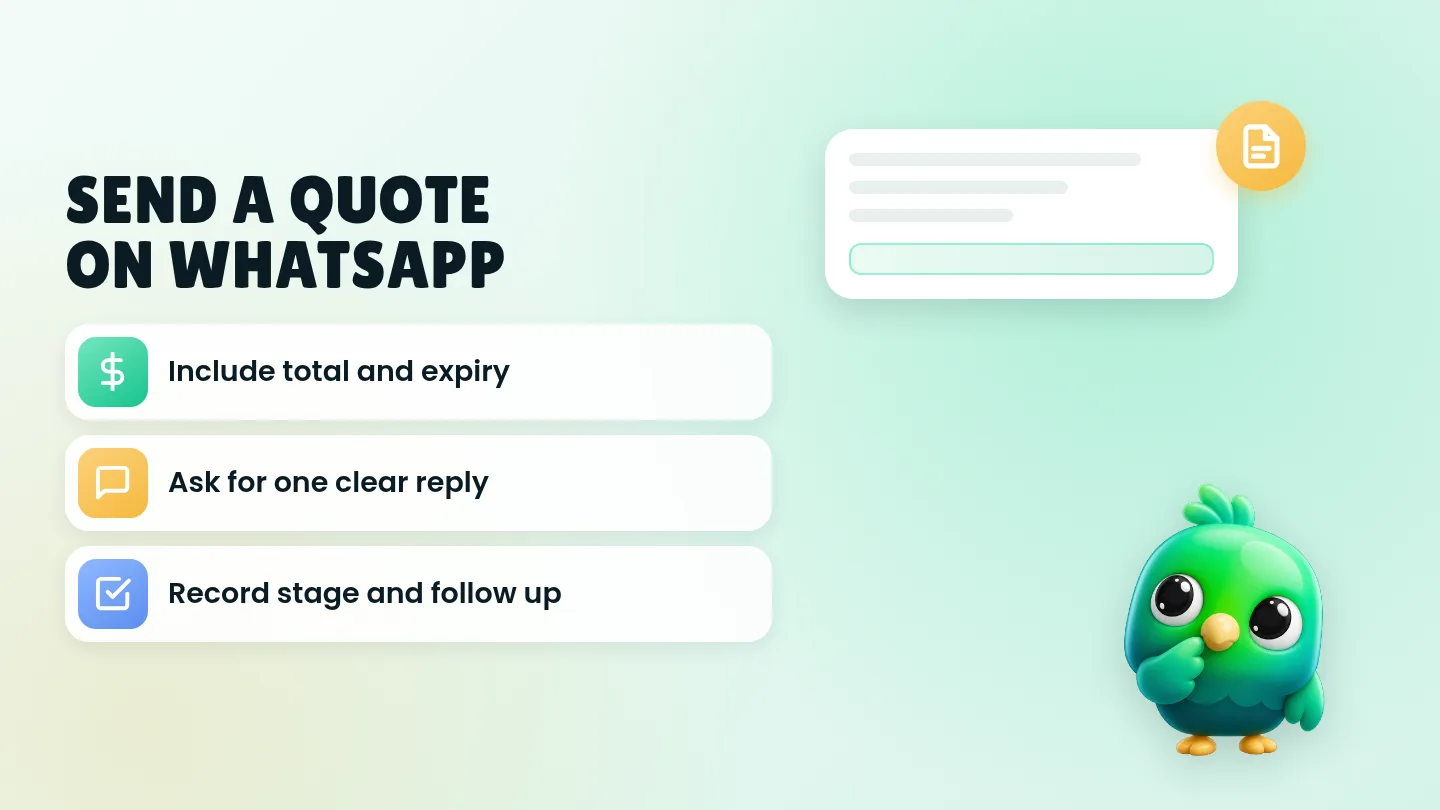
To send a quote on WhatsApp without the API, confirm what the customer needs in a short message, send a clear price (text for simple jobs, a PDF for bigger ones), state what is included and when the quote expires, ask for one easy reply such as YES or a question, and write the quote down where you will see it tomorrow. That loop works in the free WhatsApp Business app and on WhatsApp Web. You do not need a quoting bot or the WhatsApp Business API for a solo seller or a two-person shop.
This post is part of our guide to WhatsApp CRM for small business. It sits after you have qualified the lead and before the follow-up scripts after a quote. When they say yes and you need to take payment or fulfil, switch to confirming orders on WhatsApp or booking appointments.
Last updated 4 October 2026. WhatsApp features and policy points mentioned here were checked against the WhatsApp Help Center and WhatsApp Business Messaging Policy on that date.
Why WhatsApp quotes go quiet
Most small sellers already send prices in chat. Deals are usually lost for simple reasons:
- The "quote" was a half sentence ("about 200?") with no items, total or next step.
- The customer asked for a PDF and you sent a wall of chat lines they never scrolled back to.
- You never wrote down the amount or the day you sent it, so nobody followed up.
- Three soft "any update?" messages arrived with no new information.
- Two people on the same number quoted different prices.
An API quote tool helps when you send dozens of formal proposals a day from a CRM. For a baker, tutor, repair shop, boutique or agent with a handful of open quotes, a tight human routine is enough, and it feels more personal.
The five-step quote loop
Use the same five steps every time someone is ready for a price.
| Step | What you do | Done when |
|---|---|---|
| 1. Confirm scope | Restate what they need in one short message | They agree or correct a detail |
| 2. Send the quote | Text for simple jobs; PDF for bigger ones | They have total, inclusions and expiry |
| 3. Ask for one reply | YES, a question, or a booking/payment step | The next action is obvious |
| 4. Record it | Stage, amount, date and next follow-up | It is not only in your memory |
| 5. Follow up once | Same-day check, then the timed nudges | They reply, buy, or you close politely |
That is the whole system. The rest of this post gives you the wording, when to attach a file, and where to keep the record.
Step 1: Confirm scope before you price
A quote built on a guess creates renegotiation later. Restate the need in one message, then price.
Scope check (copy and edit)
Just to confirm before I send a price: [item/service], for [date/size/area], [delivery / pickup / on-site]. Anything I should change?
Wait for the correction or a YES. If they are still browsing, go back to qualifying questions instead of inventing a number.
Step 2: Send a clear quote (text or PDF)
Every quote should include five things, whether it is three lines of text or a short PDF:
- What you will do or supply
- The total (and currency), with optional line items
- What is included and what is not
- Validity date (when the price stops holding)
- One next step
Simple text quote
Hi [name], quote for [item/service] as discussed: [short scope]. Total [amount] including [delivery / materials / tax if relevant]. Valid until [date]. Reply YES to go ahead, or tell me what to adjust.
With two options
Two options for [need]: A) [short description] at [amount]. B) [short description] at [amount]. Both valid until [date]. Which is closer, A or B?
When to attach a PDF
Use a short PDF (or a clear photo of a written quote) when the job has several line items, terms, or a deposit. Attach it as a document in the chat, and put the total and next step in the message above the file so it shows on the lock screen. Do not send the PDF alone with "please find attached".
WhatsApp's help page on quick replies says the WhatsApp Business app can store up to 50, and you insert one with a shortcut (often by typing "/"). The same page notes that media files are not supported in quick replies on WhatsApp Web or Desktop, so keep text quotes as quick replies if you work from the computer, and attach PDFs by hand or from a tool that supports document steps. WhatsApp's small-business guide on lists and quick replies suggests a greeting, one clear answer and one next step for everyday saved replies.
You can draft and polish wording with the free WhatsApp message templates tool.
Step 3: Ask for one clear reply
A quote without a next step becomes a brochure. Prefer one of these:
- Reply YES to confirm
- Reply A or B
- Reply with the date/size you prefer
- Reply QUESTIONS if something is unclear
After they say YES
Great, you're booked in / I'll prepare the order. Next I'll send [payment details / a confirmation / a slot].
Then move into order confirmation or appointment booking as needed.
WhatsApp's Business Messaging Policy says not to ask people to share full payment card numbers, financial account numbers, personal ID card numbers or other sensitive identifiers in chat. Send a proper payment link or transfer instructions instead of asking for card numbers on WhatsApp.
Step 4: Record the quote where you will see it
A quote that exists only in chat history is how silent deals die. Pick one place and stick to it.
| Where | Good for | Watch out for |
|---|---|---|
| Spreadsheet or pipeline sheet | Several open quotes, deal values | Double entry if you also rely on labels |
| Labels or lists in WhatsApp Business | A quick "Quote sent" marker | Cannot hold amount, expiry or next date cleanly |
| Phone notes | Solo sellers with very few quotes | Easy to lose when the chat scrolls |
| Pipeline stage + notes | Seeing every open quote beside the chat | Needs a short daily glance |
Minimum fields to write down for every quote:
- Customer name (as they use it in chat)
- Scope (what you quoted)
- Total and currency
- Validity date
- Date you sent it
- Next follow-up date
- Outcome later (won, lost, adjusted)
If you still track the wider pipeline in a sheet, our WhatsApp sales pipeline template has Stage, deal value and next-action columns. For the difference between a label and a real stage, see WhatsApp labels vs a real CRM.
Step 5: Follow up without chasing forever
After you send the quote:
- Same day: a short check that it arrived and that questions are welcome
- Two or three days: one helpful nudge (size, timing, a detail they asked about)
- About a week: a direct but relaxed decision ask
- About a month: a warm close with an easy way out, then stop
Do not invent new discounts in every message. Full copy-paste scripts and timing live in our 20 WhatsApp follow-up messages after a quote. For chats that went Lost months ago and still have a real need, see how to reactivate cold WhatsApp leads. Only follow up with people who asked for a price or continued the buying chat. Marketing blasts need opt-in; our WhatsApp opt-in guide covers that separately.
If you send many follow-ups by hand, keep the tone personal and the volume modest. Our post on whether a WhatsApp Web extension can get your number banned explains why unexpected bulk messages raise risk, and WhatsApp broadcast limits covers sensible sending habits.
Simple stages for open quotes
You do not need a twelve-stage funnel. Five or six stages cover most small sellers:
| Stage | Meaning | Your next move |
|---|---|---|
| Enquiry | Asked about a product or service | Qualify |
| Qualified | Need, timing and fit are clear | Send the quote |
| Quote sent / Proposal | Price is with them | Follow up on the schedule |
| Negotiation | They asked to change price or scope | Send a revised quote once |
| Won | They said YES | Confirm order or book the slot |
| Lost | Closed politely or went silent after the last touch | Stop; note the reason |
The InboxCRM starter board uses Lead, Qualified, Proposal, Won and Lost, which maps cleanly to this loop. Service businesses that book slots can treat "Won" as confirmed booking. Product sellers can move from Won into fulfilment stages covered in the order confirmation post. The wider system is in managing WhatsApp leads without the API, and the daily WhatsApp Web sales workflow shows where quoting fits in a morning and afternoon pass.
Copy-paste set for common quote moments
Swap the brackets. Keep each message under a few lines.
| Moment | Message |
|---|---|
| Scope check | Confirming before I price: [scope]. Anything to change? |
| Text quote | Quote for [scope]: total [amount], valid until [date]. Reply YES or tell me what to adjust. |
| Two options | A) [option] [amount]. B) [option] [amount]. Valid until [date]. Reply A or B. |
| PDF cover | Quote for [scope] attached. Total [amount], valid until [date]. Reply YES or QUESTIONS. |
| Same-day check | Just checking the quote for [scope] came through. Happy to explain anything in it. |
| Soft nudge | Did you get a chance to look at the quote for [scope]? I can adjust [size/date/option] if needed. |
| Close | I'll close the quote for [scope] for now so I don't keep messaging. Reply anytime if you want to pick it up. |
Mistakes that lose quoted deals
- Vague prices. "Around 200" with no scope, total or expiry.
- PDF with no cover line. The lock screen shows nothing useful, so they never open it.
- No record. Sending the quote but never writing the amount or the send date.
- Follow-up spam. Three empty "any update?" messages teach people to ignore you.
- Asking for card numbers in chat. Against WhatsApp's Business Messaging Policy; use a payment link instead.
- Quoting before qualifying. You invent a number, then renegotiate when the real need appears.
- Leaving quiet quotes in Quote sent forever. Your list stops meaning anything.
Where InboxCRM fits
InboxCRM is a WhatsApp CRM Chrome extension for WhatsApp Web. It does not replace a full quoting or accounting system, and it is not a shared proposal workspace. It helps when you already send prices in chat and want the quote amount, the stage and the follow-up beside the conversation, without moving to the WhatsApp Business API.
- Proposal stage on a pipeline board. The starter board includes Lead, Qualified, Proposal, Won and Lost. Move a chat with "Move to stage" or right-click "Add to CRM stage…". The CRM pipeline guide shows the setup, or try the interactive pipeline tutorial in your browser first (fictional data; nothing is sent).
- Deal values on the card. Put the quoted amount on the contact so open quotes add up on the sales funnel view and CSV export.
- Notes next to the chat. Store scope, validity date and "they asked about X" in the Notes tab so you do not scroll the thread before every nudge. See the chat tools panel guide.
- Saved quote replies. Quick replies can hold text and, unlike the Business app on Web, document or media steps when you reuse a standard PDF or price sheet. The quick replies guide covers it.
- Follow-up rules after Quote sent / Proposal. Trigger a message after a delay, with "Stop if chat replied" and "Stop if chat changed stage". See the follow-up guide or the follow-up tutorial.
- Personal reminders for you. Notifications can alert you with a Chrome notification and send nothing to the customer, which is useful for "revise quote by Friday" or "call before expiry". See the notifications guide.
Honest limits: CRM records stay in Chrome on your device (chrome.storage.local), not on an InboxCRM server. Scheduled messages and follow-up rules only send while Chrome and WhatsApp Web are open. InboxCRM is a single-user extension, not a shared team inbox, and it does not run inside the WhatsApp mobile app. Follow-up rules and scheduled messages are not paced by the campaign sending-safety layer, so keep quote follow-ups personal and low volume. If that matches how you work, you can add InboxCRM to Chrome.
Frequently asked questions
Can I send a professional quote on WhatsApp without the Business API?
Yes. Most solo sellers and small shops send a short text quote or attach a PDF in a normal chat, record the amount and date, and follow up by hand. The API and quoting bots help when volume or team size outgrows that routine.
What should a WhatsApp quote message include?
Include the scope, the total, what is included, a validity date, and one clear next step (YES, A/B, or QUESTIONS). Put the total and next step in the message even when you attach a PDF, so it shows on the lock screen.
Should I send a WhatsApp quote as text or as a PDF?
Use text for simple one-line or few-item prices. Use a short PDF when there are several line items, terms or a deposit. Always add a cover message with the total and next step above the file.
How soon should I follow up after sending a quote on WhatsApp?
A same-day check that the quote arrived is fine. After that, two or three days is a common first nudge, then about a week and about a month. Adjust to how quickly your customers usually decide, and stop after a clear close.
Sources
- How to use quick replies, WhatsApp Help Center, checked 4 October 2026
- Staying organized as a small business using Lists and quick replies on WhatsApp, WhatsApp for Business, checked 4 October 2026
- How to use labels, WhatsApp Help Center, checked 4 October 2026
- How to use click to chat, WhatsApp Help Center, checked 4 October 2026
- About linked devices, WhatsApp Help Center, checked 4 October 2026
- WhatsApp Business Messaging Policy, WhatsApp, checked 4 October 2026
InboxCRM is a WhatsApp CRM for WhatsApp Web. Pipeline, notes, follow-ups and quick replies beside every chat, with your CRM data kept in your browser.
Add InboxCRM to Chrome