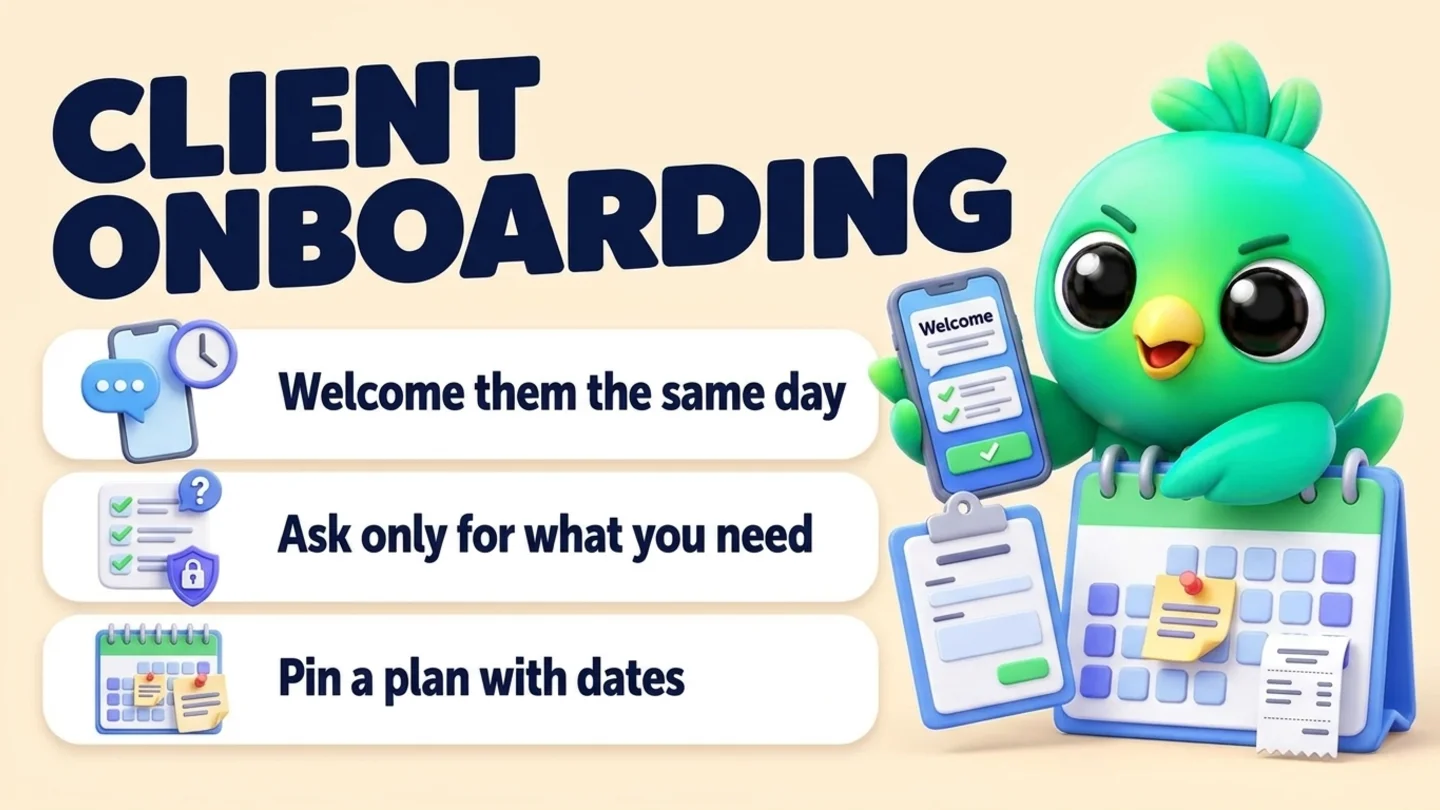
To onboard a new client on WhatsApp, send a welcome message the same day they say yes. It should confirm what they bought, say what happens next and ask for one thing. Then collect only the details you need to start, in one short list, and never ask for full card numbers, bank account numbers or ID numbers in the chat: WhatsApp's Business Messaging Policy prohibits it. Send a short plan with dates and pin it so it stays at the top of the chat. Agree when you reply and what belongs in WhatsApp versus email. Finally, check in after the first milestone. Track each client's progress with a few onboarding stages so nobody stalls between "paid" and "started".
This post is part of our guide to WhatsApp CRM for small business. It picks up where sending a quote on WhatsApp ends: the client said yes. It is written for service businesses whose work runs over days or weeks, such as freelancers, agencies, coaches, bookkeepers, contractors, photographers and event vendors. If you sell products, confirming orders on WhatsApp is the closer fit. If the job is a single visit, booking appointments on WhatsApp covers it.
Last updated 10 October 2026. WhatsApp's Business Messaging Policy, WhatsApp Help Center pages, Meta's template review guidance and the FTC's guide to protecting personal information were checked against each organization's own pages on that date. This is practical guidance, not legal or compliance advice.
Why the first week decides the relationship
Most small service businesses work hard to win a client, then go quiet. The deposit lands, the owner gets busy, and the client is left wondering what happens next. On WhatsApp the gap is easy to miss, because the chat looks the same as every other chat in the list.
| What the client feels | What usually caused it | The onboarding fix |
|---|---|---|
| "Did they get my payment?" | No reply after the deposit or signed agreement | A welcome message the same day |
| "What do they need from me?" | Questions arrive one at a time over several days | One intake list, sent once |
| "When does it actually start?" | Dates live in the owner's head | A short plan with dates, pinned in the chat |
| "Can I message at 10pm?" | Nobody said how the chat works | A working agreement: hours, reply time, what goes where |
| "Is this going well?" | No contact until the first delivery | A check-in after the first milestone |
None of these needs software. They need a routine that you follow for every new client, in the same order.
The onboarding routine in five steps
- Welcome the same day. Confirm what they bought, what happens next, and one thing you need.
- Ask only for what you need. One intake list. Sensitive documents go through the right channel, not the chat.
- Send a plan with dates and pin it. Kickoff, first milestone, and when they hear from you.
- Agree how you'll use the chat. Your hours, reply time, and what belongs in WhatsApp versus email or calls.
- Check in after the first milestone. Ask how it's going, fix small problems early, then move them to your normal routine.
Step 1: Send a welcome message the same day
The welcome message is your receipt, your plan and your first request in one. Send it the day the client says yes or pays the deposit, even if work starts next week.
A good welcome message does four things:
- Confirms what they bought, in their words, not your internal package name.
- Says what happens next, with a date if you have one.
- Asks for one thing, such as the intake answers or a kickoff time.
- Checks that WhatsApp is the right place for updates. WhatsApp's policy asks businesses to set expectations so people expect the messages they receive, and to get opt-in that covers the kinds of messages they'll send. A client who just hired you on WhatsApp usually expects project updates there, but asking takes one line and settles it.
Welcome templates
Project work (freelancers, agencies, consultants)
Hi [name], thanks for choosing us. I've got your deposit for [project] and I'm looking forward to it. Here's what happens next: I'll send a short list of questions today, and once I have your answers we'll book a 30-minute kickoff this week. Is WhatsApp good for project updates, or would you prefer email?
Home services and contractors
Hi [name], you're booked in for [job] starting [date]. Thanks for going with us. Before we start I need three quick things, which I'll send in the next message. If anything changes on your side, just message here.
Coaching and tutoring
Welcome, [name]. Your [program / first 4 sessions] is confirmed and our first session is [day, time]. I'll send a short form in a moment so I can plan it around your goals. Message me here any time with questions, and I'll reply within one working day.
Bookkeeping and admin services
Hi [name], thanks for signing up for [service]. Next step: I'll send a checklist of what I need to get started. Please don't send tax forms, statements or ID documents in WhatsApp. I'll share a secure upload link for those.
Photographers and event vendors
Hi [name], your date is locked in for [date]. Thank you. Over the next week I'll send a short questionnaire and we'll set a planning call about [time before the event]. You'll hear from me again on [date].
If you need a starting point for the wording, the free WhatsApp message templates tool has welcome and follow-up messages you can adapt, and the WhatsApp text formatter adds bold or lists without breaking the layout.
Step 2: Ask only for what you need to start
The intake is where onboarding goes wrong most often. Questions trickle out over days, clients answer half of them, and someone sends a photo of their driver's license because nobody said not to.
Send one list, numbered, so the client can answer by number. Ask for what you need to start the work, and nothing more. The FTC's guide to protecting personal information puts it plainly: if you don't have a legitimate business need for sensitive personally identifying information, don't keep it, and don't even collect it.
| Fine to ask in the chat | Collect another way | Don't ask for on WhatsApp |
|---|---|---|
| Project goals, preferences, sizes, colors, style examples | Signed agreements (use your e-signature or contract tool) | Full payment card numbers |
| Addresses, access instructions, parking, best contact times | Payments (send a payment link or invoice from your payment provider) | Bank or financial account numbers |
| Brand files, logos, photos of the space or the problem | Tax forms, statements and anything with a Social Security number (use a secure portal or your accounting software) | ID card numbers, or photos of a driver's license or passport |
| Names of other people involved and their role | Health or medical history, if your rules require a system built for it | Passwords or one-time login codes |
The right-hand column comes straight from WhatsApp's Business Messaging Policy, which says not to share or ask people to share full-length payment card numbers, financial account numbers, personal ID card numbers or other sensitive identifiers. Meta's template review guidance adds that this includes asking for documents that might contain those identifiers, and that partial identifiers, such as the last four digits of a Social Security number, are acceptable. The same policy says not to send or request health-related information on WhatsApp if the regulations that apply to you prohibit sending it to systems that don't meet the heightened requirements for that kind of information. If you run a clinic, therapy practice or similar, check your own rules before you put any intake on WhatsApp.
Passwords aren't named in the policy, but the same logic applies. If you need access to a client's website, ad account or software, ask them to invite you as a user from their side instead of sending a password in the chat.
An intake message you can adapt
Thanks, [name]. Here are the five things I need to get started. Reply with the numbers whenever you have them; no need to answer all at once.
- [The main goal, in one sentence]
- [Deadline or key date]
- [Files or examples, e.g. logo, photos of the space]
- [Practical details, e.g. address and access, or who else is involved]
- Anything you definitely don't want
Please don't send ID documents, bank details or tax forms here. If I need any of those, I'll send a secure link.
WhatsApp Web lets you send documents up to 2 GB, so a welcome pack or questionnaire PDF is fine to attach. Put the one-line summary above the file, because a PDF on its own is easy to ignore.
Tip: Write the answers into one place as they arrive, not just the chat. Six weeks in, "what did they say about colors?" is a search through 200 messages unless you noted it on day two.
Step 3: Send a plan with dates, and pin it
Clients relax when they can see the next date. Send a short plan once the intake is in, and keep it to what they need to know:
Here's the plan, [name]:
- Kickoff call: [day, time]
- First draft / first visit / first session: [date]
- Your feedback by: [date]
- Final delivery / handover: [date]
I'll message here at each step. If a date needs to move, I'll tell you as soon as I know.
Then pin it. On WhatsApp you can pin a message so it shows as a banner at the top of the chat, for 24 hours, 7 days or 30 days, and WhatsApp's Help Center says you can pin up to four messages in a chat. Pin the plan for 30 days, and pin the next key message if the project runs longer. The client never has to scroll for the date, and neither do you.
If the kickoff is a call or a site visit, book it the same way you book any appointment: two options, a confirmation they can reply YES to, and one reminder. Booking appointments on WhatsApp has the wording.
Step 4: Agree how you'll use the chat
Many client frustrations come from unspoken assumptions about WhatsApp: that you reply at night, that voice notes count as approvals, or that a big change can be agreed in a two-word message. Spell it out once, early, in a short message:
A few notes on how we'll work:
- I reply on WhatsApp [Mon to Fri, 9am to 5pm], usually within [a few hours].
- Quick questions and updates: here. Contracts, invoices and anything with personal financial details: by email or the secure link.
- Changes to the scope or price: I'll confirm them in writing here before I start.
- I'll never ask for your passwords or card details in WhatsApp. If someone does in my name, please call me.
That last line matters more than it looks. It tells the client what a real message from you never contains, which helps them spot a scam that uses your name.
If several people on the client's side need updates, message the main contact and let them share. WhatsApp's policy says you may not forward or share information from one customer's chat with another customer, so keep each client's details inside their own chat.
Step 5: Check in after the first milestone
The first check-in catches small problems while they are still small. Send it after the first real piece of work, not on a fixed day:
Hi [name], we've done [first milestone]. How is it feeling so far? Anything you'd like more or less of before we carry on?
Good answers go in your notes. A concern gets a reply the same day and, if it's more than a quick fix, a call. If the work runs for months, a short check-in at each milestone keeps the relationship from going quiet.
Once onboarding is done, the client moves to your normal routine. Problems go through your customer service on WhatsApp process, invoices through payment reminders if they run late, and at the end of the job you can ask for a Google review and later ask for referrals.
Track onboarding so nobody stalls
The common failure isn't a bad welcome message. It's a client who paid, got the welcome, and then sat for nine days because the intake answers never came and nobody noticed. A handful of onboarding stages fixes that:
| Stage | Means | Stuck if | Your next move |
|---|---|---|---|
| Signed | Said yes and paid the deposit, or signed | No welcome sent the same day | Send the welcome |
| Waiting on client | Intake or files requested | Nothing back after two or three working days | One friendly nudge, then a call |
| Kickoff booked | Intake in, kickoff date agreed | The date passes without a session | Rebook straight away |
| In progress | Work started, plan pinned | No update by the date in the plan | Send an update, even if it's "slight delay" |
| Checked in | First milestone done, check-in sent | A concern is still open | Fix it, then move on |
Keep onboarding stages separate from your sales stages. A client in "Waiting on client" shouldn't look like an open lead. In a spreadsheet that's a second tab; with WhatsApp Business lists it's a set of lists with a clear name (lists are WhatsApp's replacement for labels, which our WhatsApp labels vs CRM post covers in detail). Lists show who is in which stage but can't hold the intake answers or the date you promised, which is why most people add a note per client. Our free WhatsApp sales pipeline template can be copied into an onboarding tab, and managing WhatsApp leads without the API shows the same stage-and-note system for leads.
For the nudge in "Waiting on client", one message is enough:
Hi [name], no rush, just checking you saw the questions from [day]. If it's easier, we can go through them on a 10-minute call. What suits you?
If they still don't answer, call. Our follow-up message scripts cover chasing quotes; a client who already paid deserves a phone call before a second text.
Wording to avoid (and what to say instead)
| Avoid | Why | Say instead |
|---|---|---|
| "Please send a photo of your ID and your card details to get started" | WhatsApp's policy prohibits asking for ID numbers and card numbers in the chat | "I'll send a secure link for anything personal" |
| "Send me your login so I can set things up" | Passwords in a chat are hard to take back and easy to misuse | "Could you invite me as a user from your account?" |
| "Let me know if you have any questions!" (and nothing else) | No next step, no date | "Next: your answers to the 5 questions, then we book the kickoff" |
| Ten separate question messages over three days | Clients answer the last one and miss the rest | One numbered list, answered by number |
| "We'll be in touch soon" | Nobody knows what "soon" means | "You'll hear from me by Thursday" |
| Adding the client to your promotions list during onboarding | They agreed to project updates, not offers | Ask separately, later, if you want to send offers. See WhatsApp opt-in without the API |
Where InboxCRM fits
InboxCRM is a WhatsApp CRM Chrome extension for WhatsApp Web. It isn't a client portal, an e-signature tool or a place for sensitive documents. It helps when you already talk to clients in WhatsApp Web and want each client's onboarding step, notes and reminders next to the chat, without the WhatsApp Business API.
- An onboarding board. When you create a board, you can start from the "Customer onboarding" template (alongside "Sales pipeline" and "Support tickets"), then rename the stages to match the table above. Add a client with right-click "Add to CRM stage…" or "Move to stage" in the chat tools panel, and a stage chip appears next to the chat in your WhatsApp chat list. See the CRM pipeline guide, or try the pipeline tutorial first.
- Your welcome pack as a quick reply. Save the welcome message, the intake list and a questionnaire PDF as quick replies and send them in a click. Text-only replies can go into the message box first, so you can add the client's name. See the quick replies guide.
- Intake answers on the contact. Notes, tags and custom fields sit beside the open chat, so "prefers email for invoices, kickoff Tue 10am" is one glance away. Keep sensitive identifiers out of notes, just as you keep them out of the chat. See the chat tools panel guide or the contacts and notes tutorial.
- One nudge if the intake stalls. A follow-up rule can watch the "Waiting on client" stage and send one message after the delay you set, such as three days. Tick "Stop if chat replied" and "Stop if chat changed stage" so it never goes to a client who already answered or moved on. Each rule sends to a chat only once. See the follow-up guide.
- Reminders only you see. Notifications give you a Chrome notification at the time you set, such as "prep kickoff for Dana" or "check in after first draft", and send nothing to the client. See the notifications guide.
- A scheduled check-in. If you know the milestone date, schedule the check-in from inside the chat with "Schedule message". See the scheduling guide.
Honest limits: CRM records are stored in Chrome on your device (chrome.storage.local), not on an InboxCRM server, so they stay on that computer unless you back them up and restore them elsewhere, and they don't show in the WhatsApp mobile app. Follow-up rules and scheduled messages only send while Chrome is running with WhatsApp Web open. InboxCRM is a single-user extension, not a shared team inbox. Our post on where WhatsApp CRM data is stored explains the local-first model, and the freelancers and agencies page shows how a typical project business sets it up. If that fits how you work, you can add InboxCRM to Chrome.
Mistakes that make onboarding harder
- Waiting until work starts to say anything. A deposit followed by a week of silence makes clients nervous. The welcome goes out the same day.
- Collecting everything "just in case". Every extra detail is something you have to protect. Ask for what the job needs.
- Sending the plan without dates. "Kickoff soon, then first draft" isn't a plan. Put a day next to each step.
- Letting the chat replace the agreement. Scope and price changes need a clear written confirmation, not a thumbs-up on a voice note.
- Bulk-sending onboarding messages. Onboarding happens one client at a time. A broadcast to everyone who signed this month is impersonal and runs into the rules in WhatsApp broadcast limits.
- Mixing onboarding with selling. Upsells can wait until the client has seen the first result.
Frequently asked questions
Can I onboard clients on WhatsApp without the WhatsApp Business API?
Yes. For a small service business, the WhatsApp Business app (or WhatsApp Web) is enough: a welcome message, an intake list, a pinned plan and a check-in, all in the one-to-one chat the client already started. The API is worth it when you onboard many clients a day and need automated messages outside a conversation, which then require Meta-approved templates.
What should a client welcome message on WhatsApp include?
Four things: what the client bought, what happens next (with a date if you have one), one thing you need from them, and a quick check that WhatsApp is the right place for updates. Keep it to a few lines and send it the same day they say yes.
Is it OK to collect client documents on WhatsApp?
Ordinary files, such as logos, photos or a filled-in questionnaire, are fine, and WhatsApp Web accepts documents up to 2 GB. Don't ask for full card numbers, bank account numbers or ID numbers, or for documents that contain them: WhatsApp's policy prohibits it, and Meta's guidance says that includes documents. Use a secure portal, your accounting software or a payment link for those.
How do I keep the onboarding plan visible in a long chat?
Send the plan as one message with dates, then pin it. WhatsApp lets you pin a message for 24 hours, 7 days or 30 days, and it shows as a banner at the top of the chat. Up to four messages can be pinned in a chat.
How do I track where each new client is in onboarding?
Use a few onboarding stages, such as Signed, Waiting on client, Kickoff booked, In progress and Checked in, kept separate from your sales stages. A spreadsheet tab, a set of WhatsApp Business lists or a CRM board all work. Add a short note per client so the intake answers and promised dates aren't buried in the chat.
Sources
- WhatsApp Business Messaging Policy (last updated 23 September 2026), WhatsApp, checked 10 October 2026
- Template review, Meta for Developers, checked 10 October 2026
- How to pin a message, WhatsApp Help Center, checked 10 October 2026
- How to send media, contacts, or location, WhatsApp Help Center, checked 10 October 2026
- How to use labels (labels are now lists), WhatsApp Help Center, checked 10 October 2026
- Protecting Personal Information: A Guide for Business, Federal Trade Commission, checked 10 October 2026
InboxCRM is a WhatsApp CRM for WhatsApp Web. Pipeline, notes, follow-ups and quick replies beside every chat, with your CRM data kept in your browser.
Add InboxCRM to Chrome