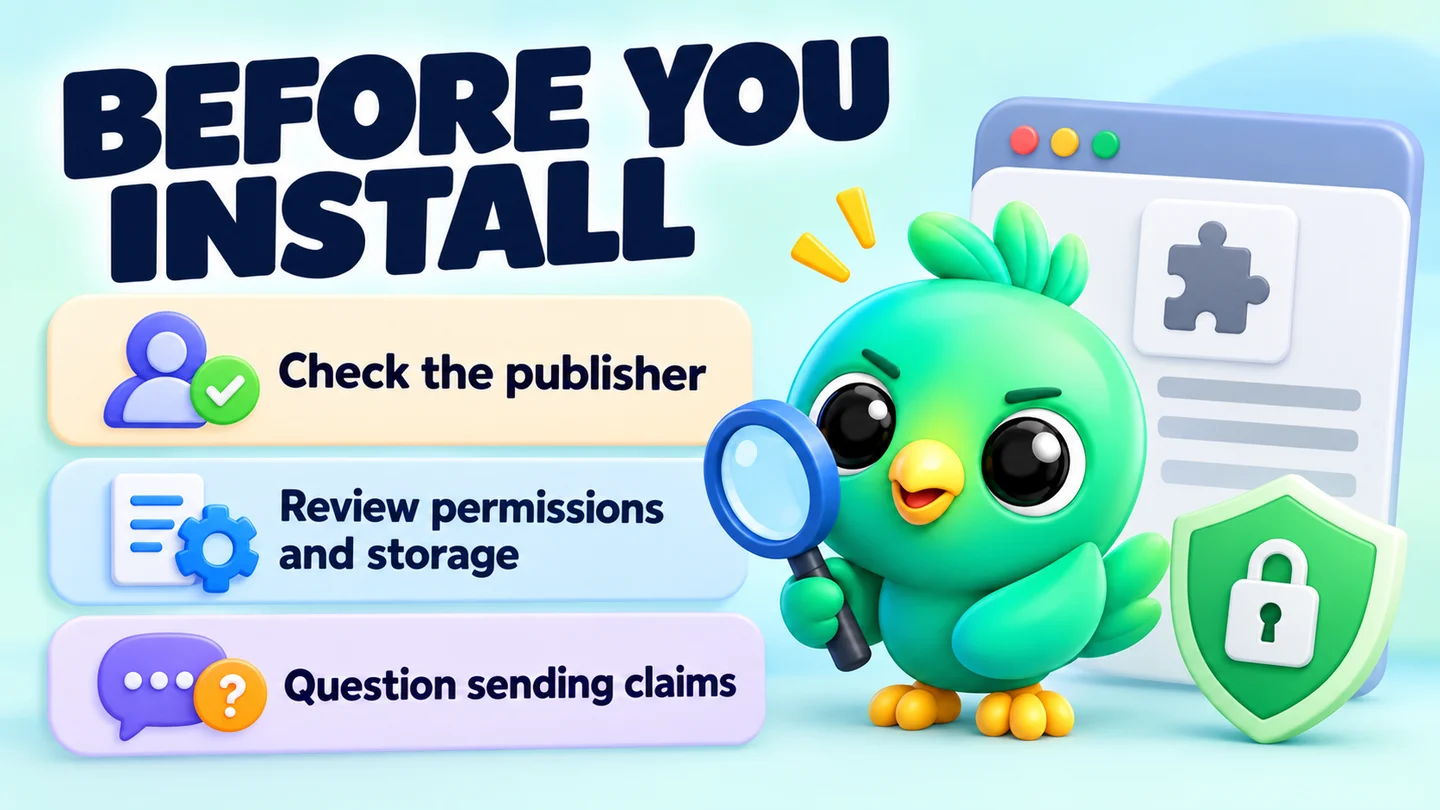
Before you install a WhatsApp Web extension, check who publishes it, what it can access, where it keeps your data and how it talks about sending messages. You can do all ten checks in Chrome in about 15 minutes, with no technical knowledge. They won't make any tool risk-free, but they filter out the ones you shouldn't trust with your customers' chats.
This checklist is part of our guide to whether WhatsApp Web extensions are safe, which explains the background.
Note: Last checked 23 September 2026 against Chrome's help pages. Menu wording may differ slightly on your version.
Why this matters for a small business
Chrome's developer documentation explains that content scripts, the part of an extension that runs on a web page, can read that page and change it. On web.whatsapp.com, that means your customers' names, numbers and messages. That's how a CRM extension adds a pipeline next to your chats, and why you should know who is behind it.
In October 2025, researchers found 131 cloned WhatsApp Web extensions built for spam sitting on the Chrome Web Store, several of them calling themselves CRMs.
The 10-point checklist
1. Write down the one job you need it to do
Write one sentence: "I need a tool that helps me [track leads / send saved replies / blur chats on screen shares]." Judge every extension against it.
Chrome Web Store rules require extensions to have a single purpose. A listing that promises everything, especially mass sending alongside a CRM, deserves a closer look. A cake seller who wants order reminders (an illustration) doesn't need a tool built around mass sending.
2. Install only from the Chrome Web Store
Don't install from a download link, a ZIP file or a "developer mode" guide on someone's website. Store listings go through Google's review and can be removed; files from elsewhere have had no review.
If you turn on Safe Browsing's Enhanced protection in Chrome's privacy and security settings, Chrome also warns you when an extension "isn't trusted by Enhanced Safe Browsing". New developers usually take a few months to become trusted, so the warning isn't proof of anything bad, just a reason to slow down.
3. Check who the publisher is
On the store listing, scroll to the developer details. Look for:
- A real business name and website you can visit, with a contact address.
- A privacy policy link that opens and is written for this product.
- The Established Publisher badge. Google gives it automatically to publishers who have verified their identity and have a good track record with its policies. Publishers can't pay for it.
- Their other extensions. Click the publisher name if it's a link. Dozens of near-identical WhatsApp tools under different names is the pattern from the 131-extension case.
New publishers won't have the badge yet. But no website, no contact details and no privacy policy together is a clear "no".
4. Read the permission warning before you click "Add extension"
When you click Add to Chrome, Chrome lists what the extension wants to do. Read it.
For a WhatsApp Web tool, you would expect something like permission to read and change your data on web.whatsapp.com. Be more cautious if you see:
| Warning you might see | What it means in plain English |
|---|---|
| Read and change all your data on all websites | It can see every site you visit, not just WhatsApp |
| Read your browsing history | It can see which pages you open |
| Read data you copy and paste | It can read your clipboard |
| Manage your apps, extensions, and themes | It can control your other extensions |
| Manage your downloads | It can see and handle files you download |
Does each permission fit the job from point 1? A WhatsApp CRM has no obvious reason to read your banking site.
5. After installing, check its site access in chrome://extensions
Type chrome://extensions into the address bar and press Enter. Find the extension and click Details. You'll see:
- Permissions: the same list you saw at install, in writing.
- Site access: Chrome's help page lists three settings: "On select" (the extension only runs when you click it), "On specific sites" and "On all sites". Older versions of Chrome may call the first one "On click".
If a WhatsApp tool has access to all sites, switch it to On specific sites and add https://web.whatsapp.com. If it still works, keep it that way. If it breaks, ask the publisher why.
Tip: While you're there, remove any extension you don't recognise or haven't used in months.
6. Read the "Privacy practices" section on the listing
Each Chrome Web Store listing has a privacy section where the developer declares what data the extension collects, such as personally identifiable information, personal communications or website content, and certifies how it is used.
This is the developer's own declaration: Google requires it, but it's a promise, not an audit. If an extension says it collects "personal communications" or "website content", its privacy policy should explain exactly what and where it goes.
7. Find out where your customer data will live
Most listings skip this. Your pipeline, notes and order details describe real people. Find out:
- Is the data stored locally in your browser, or uploaded to the company's servers?
- If it's in the cloud, which country, and who at the company can see it?
- Can you export a backup and take your data with you?
- What happens to your data if you uninstall, or if the company closes?
Neither model is automatically right, but know which you're choosing. Our explainer on where WhatsApp CRMs store customer data compares local-first and cloud storage in plain terms.
8. List every way data can leave your computer
Even a local-first tool may send data out for specific features. Check for:
- AI features: which provider receives your message text, and whose API key is used? Our guide to AI replies with your own API key explains the trade-offs.
- Webhooks or integrations: does data go only to addresses you enter yourself?
- Account sign-in: what does the login server receive?
- Cloud backup: is it optional, and is it encrypted before it leaves your device?
- Analytics or error reports: do they include chat content?
Vague answers like "we take privacy seriously" don't count.
9. Read how it talks about sending messages
This is the check that protects your number. Read the listing's headline, screenshots and feature list. Warning signs:
- Promises of mass "blasts" to any list of numbers
- Claims that it avoids bans or is "undetectable"
- No mention of opt-in, limits or WhatsApp's rules
WhatsApp says it bans accounts for bulk messaging, auto-messaging and unwanted messages that people report, and no extension can change that. Better signs are visible sending caps, quiet hours, advice to message only people who opted in, and a plain statement that no tool can guarantee against restrictions. See will a WhatsApp Web extension get my number banned?.
10. Check recent reviews, updates and permission changes
Read the most recent reviews. Google said in August 2026 that ratings now weight recent reviews more, but read a few yourself and look for complaints about bans, lost data or surprise changes.
If an update adds a permission that triggers a warning, Chrome disables the extension until you accept it. Don't just click accept; go back to point 4 and ask why.
The checklist at a glance
| # | Check | Where to look | Red flag |
|---|---|---|---|
| 1 | One clear job | Your own notes | Mass sending bundled with everything else |
| 2 | Official source | Chrome Web Store | ZIP files or "developer mode" installs |
| 3 | Publisher | Listing developer section | No website, contact or privacy policy |
| 4 | Install warning | "Add extension" box | Access to all websites for a WhatsApp tool |
| 5 | Site access | chrome://extensions, Details | Set to "On all sites" when it doesn't need it |
| 6 | Privacy practices | Listing privacy section | Collects communications with no clear policy |
| 7 | Data storage | Privacy policy, help pages | You can't tell where data lives |
| 8 | Data leaving | Privacy policy, feature docs | Unexplained uploads of chat text |
| 9 | Sending claims | Listing copy and screenshots | Ban-avoidance or blast promises |
| 10 | Reviews and updates | Reviews tab, Chrome prompts | Recent reports of bans or data loss |
Once it's installed
- Blur customer data on screen shares. A privacy blur for WhatsApp Web hides names, photos and messages until you hover.
- Keep a backup of your CRM data somewhere you control. The chat backup guide shows how InboxCRM, a WhatsApp CRM extension, does it.
- Let customers message you first. A WhatsApp click-to-chat link on your website or Instagram means people start the conversation, which fits WhatsApp's opt-in rules.
- Re-run this checklist every few months and whenever an extension asks for new permissions.
How InboxCRM answers these questions
Here is what clear answers look like, using InboxCRM's. CRM records are kept in Chrome's local extension storage on your device, with no server-side copy. Data leaves only for features you turn on: AI requests to the provider you choose, webhooks to URLs you enter, and an optional cloud chat backup encrypted on your device before upload. Account sign-in never receives your WhatsApp messages or CRM records. Campaigns run with conservative caps on by default (40 messages an hour and 250 a day), which reduce risk rather than remove it. The privacy-first page has the details. Hold any tool, including this one, to the same ten checks.
Frequently asked questions
How do I see what permissions a Chrome extension has?
Type chrome://extensions into the address bar, find the extension and click Details. You'll see its permissions and a site access setting you can change to limit where it runs.
Can a WhatsApp Web extension read my messages?
An extension with access to web.whatsapp.com can read what the page shows, which includes your chats. That's how CRM and blur tools work, so check the publisher and where data goes first.
Sources
- Extension quality guidelines — Chrome for Developers, checked 23 September 2026
- Install and manage extensions — Chrome Web Store Help, checked 23 September 2026
- Content scripts — Chrome for Developers, checked 23 September 2026
- Permissions list — Chrome for Developers, checked 23 September 2026
- Permission warning guidelines — Chrome for Developers, checked 23 September 2026
- Discovery on the Chrome Web Store — Chrome for Developers, checked 23 September 2026
- Fill out the privacy fields — Chrome for Developers, checked 23 September 2026
- Chrome Web Store user data FAQ — Chrome for Developers, checked 23 September 2026
- Chrome Web Store updates: Faster reviews, new publication limits, badge updates, and more — Chrome for Developers, checked 23 September 2026
- 131 Spamware Extensions Targeting WhatsApp Flood Chrome Web Store — Socket, checked 23 September 2026
- How to use WhatsApp responsibly — WhatsApp Help Center, checked 23 September 2026
InboxCRM is a WhatsApp CRM for WhatsApp Web. Pipeline, notes, follow-ups and quick replies beside every chat, with your CRM data kept in your browser.
Add InboxCRM to Chrome