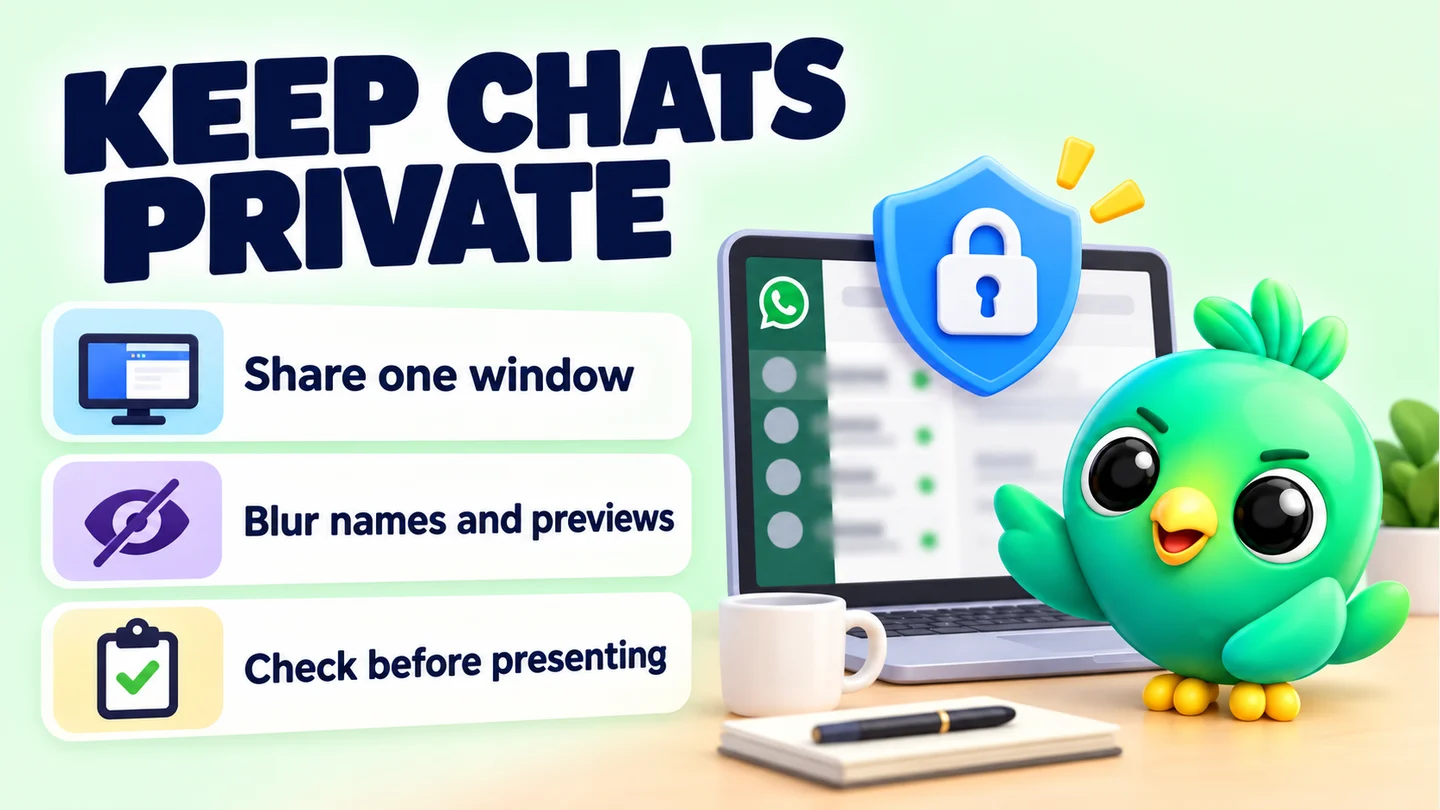
A WhatsApp Web privacy blur hides contact names, profile pictures, message previews and media on your screen until you hover over them, so people nearby or on a video call can't read your customers' chats. You can get part of the way there for free with window-only screen sharing, a separate Chrome profile, notification settings and a physical privacy filter. A blur tool covers what those miss: the chat list itself, while you keep working.
This post is part of our guide to whether WhatsApp Web extensions are safe, because privacy on screen is only one half of privacy. The other half is where your data is stored.
When your WhatsApp Web screen is on show
For a small business, WhatsApp Web is often open all day. That creates moments where the wrong person can see a customer's name or message:
- Screen sharing. A pipeline review with a partner, a call with your accountant, or training a new helper.
- Recording a tutorial or demo for social media.
- Shop counters. A phone shop or salon where the screen faces the queue.
- Shared offices and co-working desks.
- Walking away from the desk for two minutes.
Customers trust you with their addresses and orders. For a clinic or an insurance agent, showing those by accident can be a real breach of trust.
Free options that work without any extension
These cost nothing and help whatever tools you use.
1. Share one window or tab, not your whole screen
Most meeting apps let you share a single tab or window instead of the entire screen. Google Meet offers "Your entire screen", "A window" or "A tab" when you present. Zoom lets you share specific application windows.
Share the tab with your slides or spreadsheet, and WhatsApp Web stays off the call. The weak spot: it's easy to pick the wrong window, and if you need to show WhatsApp Web itself, this doesn't help.
2. Use a separate Chrome profile for demos
Chrome profiles keep bookmarks, history, passwords and settings separate, according to Chrome's help page. Create a "Demo" profile with no WhatsApp logged in, or with a test number you use only for demos. Your real customer chats simply aren't there to leak.
The weak spot: you can't show your real workflow from a demo profile.
3. Turn off message previews in notifications
A pop-up notification can flash a customer's message across your screen mid-call. WhatsApp Web's notification settings (Settings, then Notifications) include a "Show previews" option. Untick it before you present, or turn on your computer's do-not-disturb mode.
4. Lock WhatsApp Web when you walk away
WhatsApp's Help Center describes an app lock that uses a password on WhatsApp Web. It protects the session if you leave the desk, although it doesn't help while you're sitting there sharing your screen.
5. Shrink or move the window
Browser zoom is a small trick. In Chrome, Ctrl and minus (or Cmd and minus on a Mac) zooms out. On a shop screen, a smaller WhatsApp Web window pushed to one side is harder to read from a distance. It is a nudge, not real privacy.
6. Use a physical or built-in privacy screen
A privacy filter is a film over the display that makes it hard to read from the side. Some business laptops have one built in that you switch on with a key. HP's Sure View is one example. These are good for counters and open offices. They do nothing during a screen share, because the video feed isn't affected.
What the free options can't do
| Situation | Share one window | Demo profile | Notification previews off | Privacy filter | Privacy blur |
|---|---|---|---|---|---|
| Showing a spreadsheet on a call | Works | Works | Helps | No effect | Works |
| Showing WhatsApp Web itself on a call | No | Only with fake data | Helps | No effect | Works |
| Customers at the counter glancing at your screen | No | No | Helps | Works | Works |
| Recording a demo of your real workflow | No | No | Helps | No effect | Works |
When you need WhatsApp Web itself on screen, with your real chats, you need something that hides the content inside the page.
How InboxCRM's one-click privacy blur works
InboxCRM is a WhatsApp CRM that runs as a Chrome extension inside WhatsApp Web. Its privacy blur is one feature of that CRM. Here is how it behaves, based on the privacy blur guide:
- One click to turn it on. In the InboxCRM sidebar, the eye icon in the "Quick links" group toggles the blur. The label switches between "Privacy blur: OFF" and "Privacy blur: ON".
- What gets blurred by default. Profile pictures, contact names, last-message previews in the chat list, message text in the open chat, and photos and videos in the open chat. Names and pictures in the chat header are blurred too.
- Hover to peek. Move the mouse over a blurred item to read it for a moment. It blurs again when you move away, so you can find the right chat without turning the blur off.
- Choose what to hide. Under Settings, then "Privacy Settings", separate switches control profile pictures, contact names, last-message previews, all messages in the chat and media previews.
- You can keep working. You can open chats, type and send as normal. Only the display changes.
The settings and privacy tutorial lets you try the blur on a practice screen with fictional data before installing anything.
What the blur doesn't do
- It is a visual blur inside the WhatsApp Web tab. It does not block screenshots or other apps.
- Hovering reveals the item under your pointer to everyone watching. Keep the mouse away from the chat list while sharing.
- Some parts of WhatsApp Web, such as the contact info panel, may not be blurred. Avoid opening them on a call.
- It changes nothing for the person you're chatting with. Nothing is sent anywhere.
Tip: Turn the blur on before you start sharing, not after. Your chat list is visible the moment the share begins.
A simple routine before every screen share
- Close chats you don't need open.
- Turn off notification previews or switch on do-not-disturb.
- Turn on privacy blur if WhatsApp Web will be visible.
- Share a single window or tab where you can.
- Keep your pointer off the chat list.
- When the call ends, switch the blur off and your notifications back on.
A real estate agent reviewing leads with a colleague, or a clothing seller recording a "how we pack orders" video, can run through this in under a minute. Keep a few ready-made answers in a template library such as our free WhatsApp message templates too, so you're not scrolling through old customer chats to copy text while someone is watching.
Screen privacy is half the story
Hiding chats on screen protects you from the people in the room. It doesn't tell you where a tool keeps your customer data or who else can read it. Before you install any extension to blur WhatsApp Web, run through our 10-point extension checklist and read where WhatsApp CRMs store customer data. A privacy tool that uploads your chats somewhere would defeat the point.
Frequently asked questions
Can I blur WhatsApp Web without an extension?
Not the chat list itself. WhatsApp's Help Center doesn't describe a built-in chat-list blur, so check its current help pages in case that changes. You can share a single window, turn off notification previews, use app lock when you step away, or fit a privacy filter, but hiding names inside the page needs an extension.
Does a privacy blur hide chats from screenshots?
No. A blur changes how the page looks in your browser. Anyone who can see your screen can still read an item while your pointer is over it.
Will the person I'm chatting with know I use a blur?
No. The blur only changes what appears on your screen. Messages, chats and contacts are not changed.
Does a privacy filter work during screen sharing?
No. A physical or built-in privacy screen only narrows the viewing angle for people nearby. The video sent to a call shows your screen as normal.
Sources
- Present during a video meeting — Google Meet Help, checked 23 September 2026
- Sharing your screen or desktop on Zoom — Zoom Support, checked 23 September 2026
- Manage Chrome with multiple profiles — Google Chrome Help, checked 23 September 2026
- Change text, image and video sizes (zoom) — Google Chrome Help, checked 23 September 2026
- How to manage your notifications — WhatsApp Help Center, checked 23 September 2026
- How to use app lock — WhatsApp Help Center, checked 23 September 2026
- Using the HP Sure View integrated privacy screen — HP Support, checked 23 September 2026
InboxCRM is a WhatsApp CRM for WhatsApp Web. Pipeline, notes, follow-ups and quick replies beside every chat, with your CRM data kept in your browser.
Add InboxCRM to Chrome