AI connector use case · Replies
Draft a careful reply and review it before it is sent
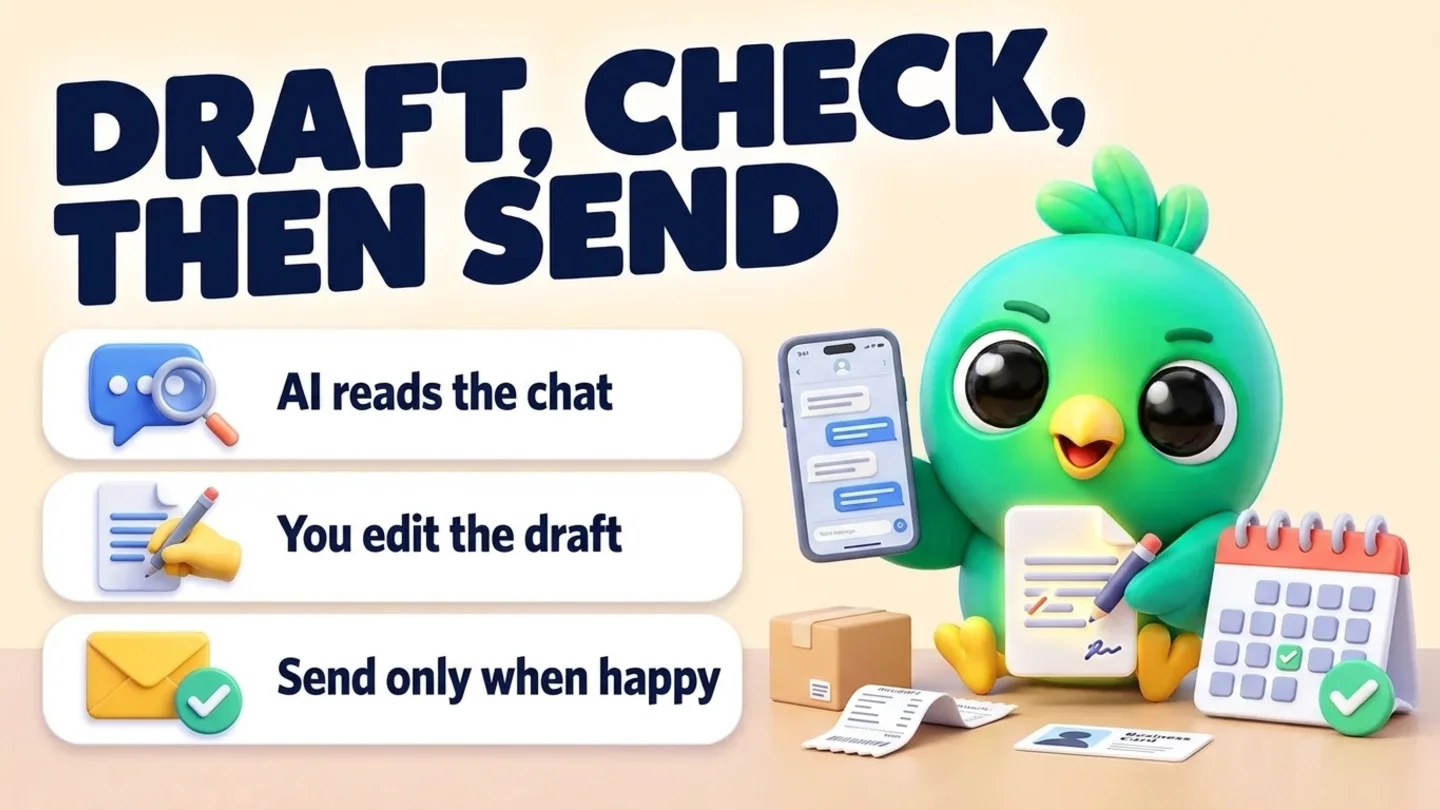
For complaints and tricky questions, let the AI read the chat and draft a reply, then edit it and tell it to send only when you are happy.
- Reading on
- Sending
The prompt
Copy this into Claude, ChatGPT or Gemini
Read my chat with Sara. She's unhappy about a late delivery. Draft a short, kind reply that apologises and offers a new delivery date of Friday. Show me the draft and wait for my OK before sending.
- Reading on: Switch on “Let Claude read my chats and orders” on the Claude tab of InboxCRM’s HTTP API window.
- Sending: Sending a text, picture or file works with only the HTTP API switched on.
Step by step
How to do it
What you get: Calm, well-written answers to the messages that are hardest to reply to.
- 1Switch on reading in InboxCRM.
- 2Paste the prompt and say "wait for my OK".
- 3Read the draft and ask for changes in plain words: shorter, warmer, no discount.
- 4Say "send it" when it is right.
Tips
- Tell the AI what you can and cannot offer before it drafts.
- Save a good apology as a quick reply for next time.
Watch out
The AI only waits if you ask it to. Always write "show me first" for sensitive replies.
Connector tools used:read_chatsend_text
Not connected yet?
Add one address to your AI app, sign in with your InboxCRM account and choose what it may read and change.
Try these next
Replies
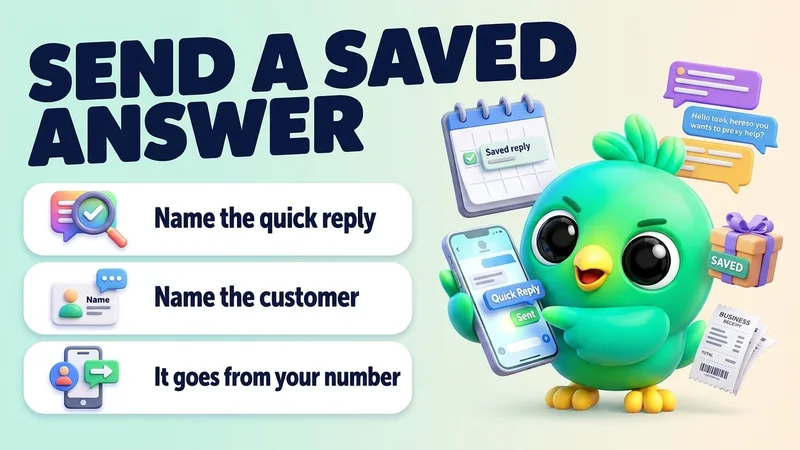
Send a saved quick reply to a customer by name
“Send my "Delivery times" quick reply to Nimali.”
See the steps- Changes on
Catch up
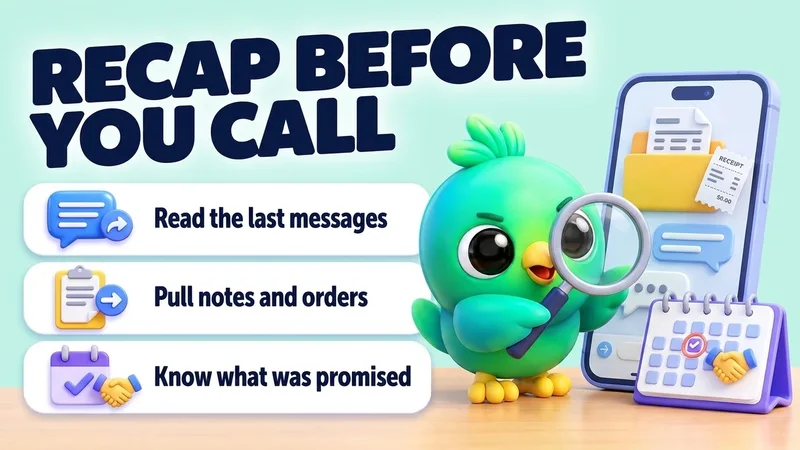
Get a quick recap of a customer before you call them
“I'm about to call Dilan (0771234567). Read our recent WhatsApp chat, his notes and his orders, and tell me in five lines what we agreed, what he's waiting for, and anything I promised.”
See the steps- Reading on
Automations
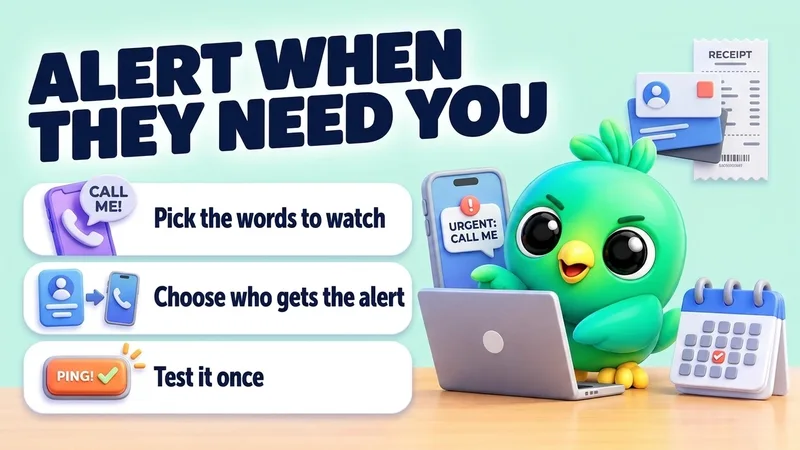
Get a phone alert when a customer asks for a person
“Set up Call a person: when a customer writes "urgent", "call me" or "complaint", alert my number 0771234567. Then send a test alert.”
See the steps- Changes on
- Preview first
Turn your WhatsApp inbox into an organised sales workspace
Add the extension, open WhatsApp Web and start organising the chats you already have. No separate CRM to keep in sync.
- Works with your existing WhatsApp Web account
- CRM records stay on your device
- AI optional, your own key