AI connector use case · Campaigns
Schedule a WhatsApp status post
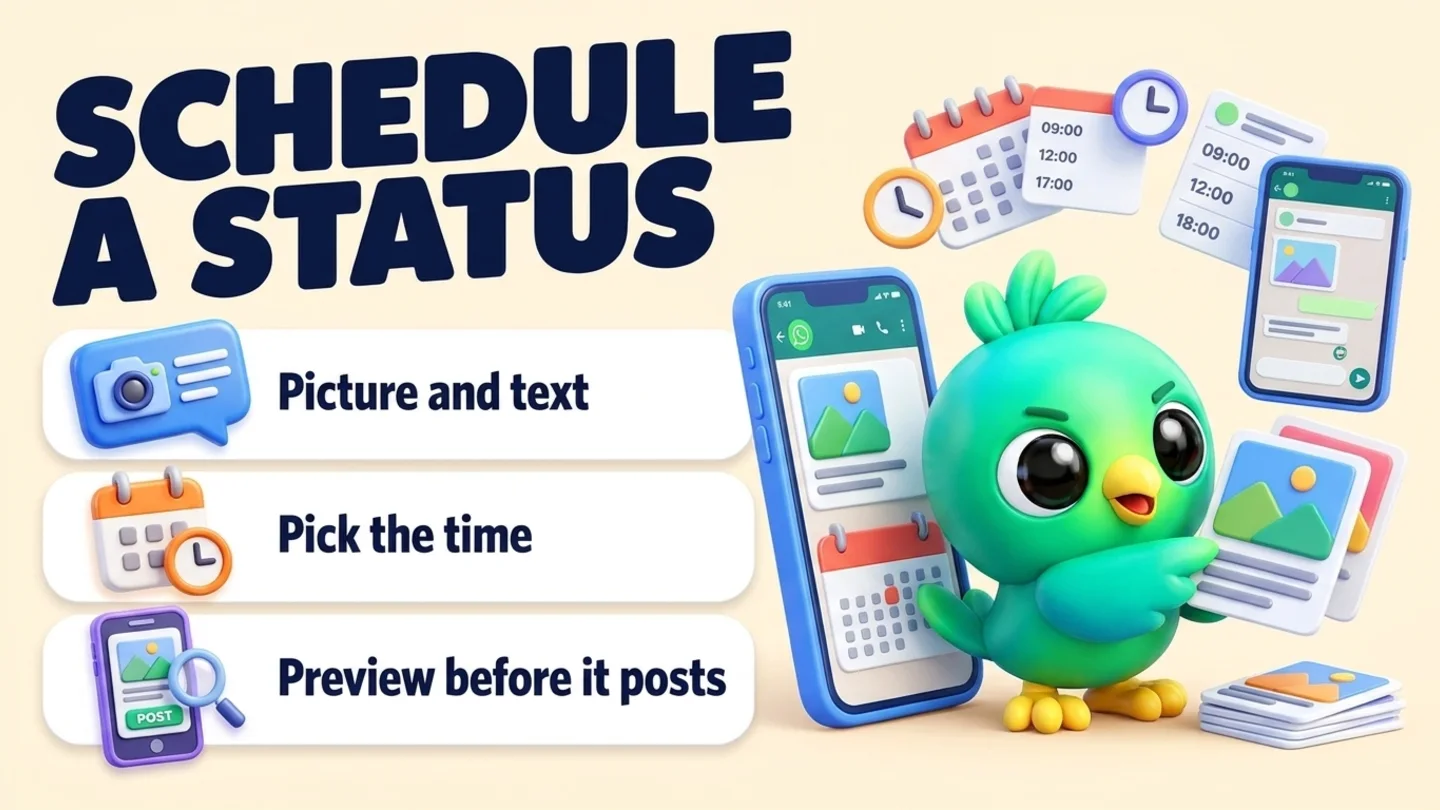
Ask the AI to schedule a WhatsApp status with a picture and text for a set time. You see a preview and nothing posts until you agree.
- Changes on
- Preview first
The prompt
Copy this into Claude, ChatGPT or Gemini
Post a WhatsApp status tomorrow at 8:00 with this photo and the text: "Weekend sale: 20% off all mugs until Sunday."
- Changes on: Switch on “Let Claude change my InboxCRM (create, edit, delete)” on the same tab.
- Preview first: the AI shows you what would happen and changes nothing until you say yes.
Step by step
How to do it
What you get: A steady stream of statuses planned in one sitting.
- 1Attach the picture in your AI app.
- 2Switch on changes in InboxCRM.
- 3Paste the prompt.
- 4Check the preview and say yes.
- 5Leave WhatsApp Web open at that time.
Tips
- Plan a week of statuses on Sunday evening.
- Ask "what statuses are scheduled?" to check.
Watch out
Changing what is posted or when also shows a preview first.
Connector tools used:statuses
Not connected yet?
Add one address to your AI app, sign in with your InboxCRM account and choose what it may read and change.
Try these next
Campaigns
Schedule a WhatsApp campaign to a customer list
“Schedule a campaign to my "VIP customers" list for Saturday at 10:00: "The holiday gift boxes are back in stock. Reply YES and I'll keep one for you."”
See the steps- Changes on
- Preview first
Replies
Send a product photo or file with a caption
“Send this photo of the blue dress to Kamal with the caption: "Just arrived in your size. Want me to keep one for you?"”
See the steps- Sending
Catch up
See everything scheduled for today on WhatsApp
“What's scheduled in InboxCRM for today and tomorrow? List messages, statuses, campaigns and reminders in time order.”
See the steps- Reading on
Turn your WhatsApp inbox into an organised sales workspace
Add the extension, open WhatsApp Web and start organising the chats you already have. No separate CRM to keep in sync.
- Works with your existing WhatsApp Web account
- CRM records stay on your device
- AI optional, your own key