AI connector use case · Stock & money
Log business expenses as you go
Tell the AI what you spent, and it adds the line to InboxCRM's expense book, so reports show what you really earn.
- Changes on

The prompt
Copy this into Claude, ChatGPT or Gemini
Add expenses for today: 3,500 for packaging (Supplies) and 1,200 for delivery fuel (Transport).
- Changes on: Switch on “Let Claude change my InboxCRM (create, edit, delete)” on the same tab.
Step by step
How to do it
What you get: An expense book that is always up to date, without a spreadsheet.
- 1Switch on changes in InboxCRM.
- 2Paste the prompt with the amount, what it was for and the category.
- 3The AI adds the lines. It can create a category you name.
- 4Ask for the month's expenses any time.
Tips
- Log from your phone through the AI app's mobile version.
- Use the same few categories every time.
Watch out
Deleting an expense shows a preview first.
Connector tools used:expenses
Not connected yet?
Add one address to your AI app, sign in with your InboxCRM account and choose what it may read and change.
Try these next
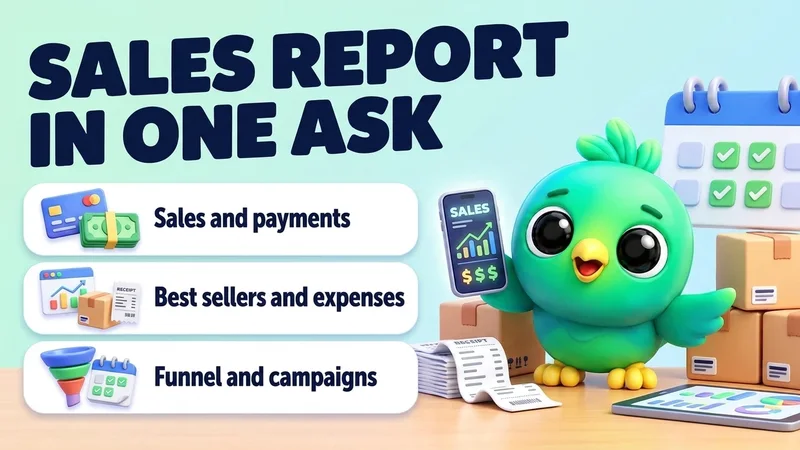
Reports
Get your monthly sales report in one question
“How did sales go in the last 30 days compared with the 30 days before? Show orders, total sales, paid versus unpaid, best sellers, expenses and campaign results in a table.”
See the steps- Reading on
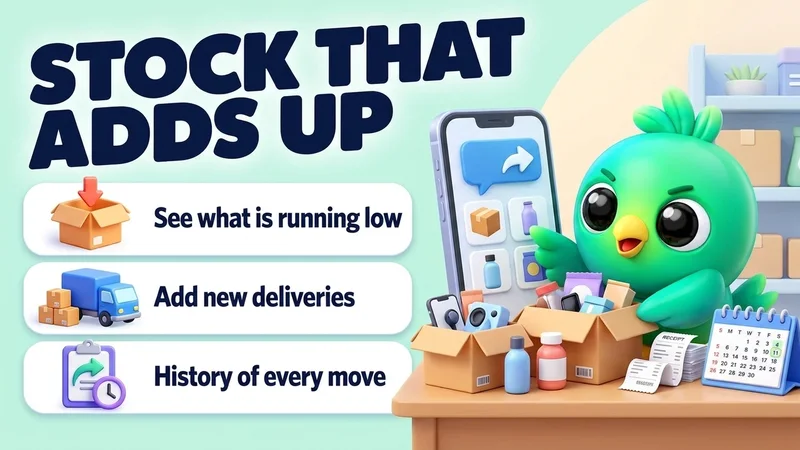
Stock & money
Check low stock and add new stock
“Which products have fewer than 5 in stock? Then add 50 units of the blue T-shirt in size M, delivered today.”
See the steps- Reading on
- Changes on
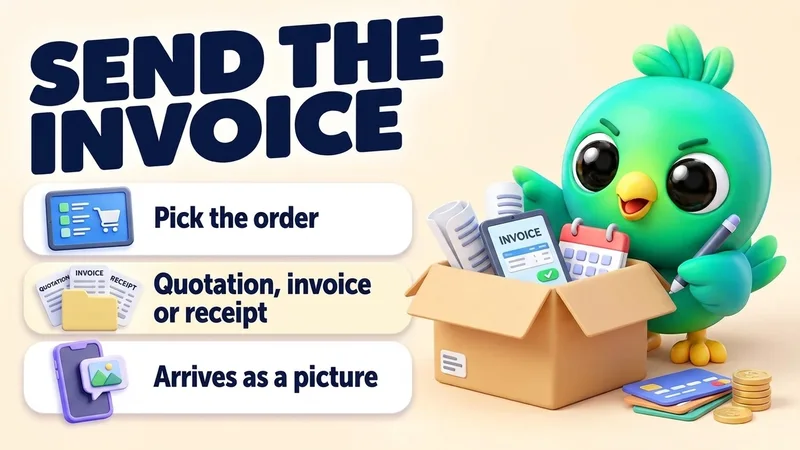
Orders
Send a quotation, invoice or receipt into the chat
“Kamal paid 3,800 by bank transfer. Mark his latest order paid and send him the receipt.”
See the steps- Reading on
- Changes on

Turn your WhatsApp inbox into an organised sales workspace
Add the extension, open WhatsApp Web and start organising the chats you already have. No separate CRM to keep in sync.
- Works with your existing WhatsApp Web account
- CRM records stay on your device
- AI optional, your own key